Logs screen overview
The Logs screen shows your flights, simulator logs, and positioning duties in one place. You can search, filter, open details, edit records, export search results, view logs on the map or logbook, switch to calendar view, and delete single or multiple records.
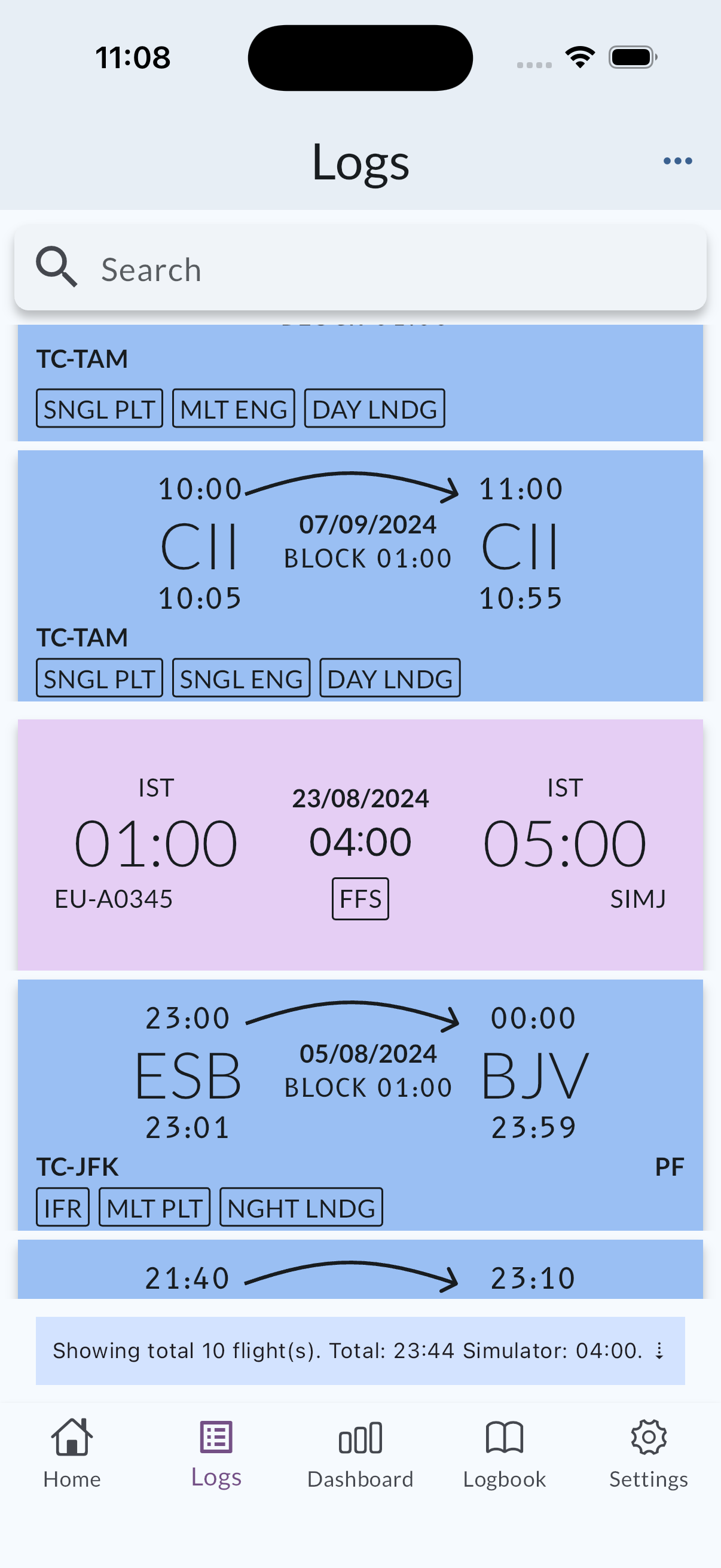
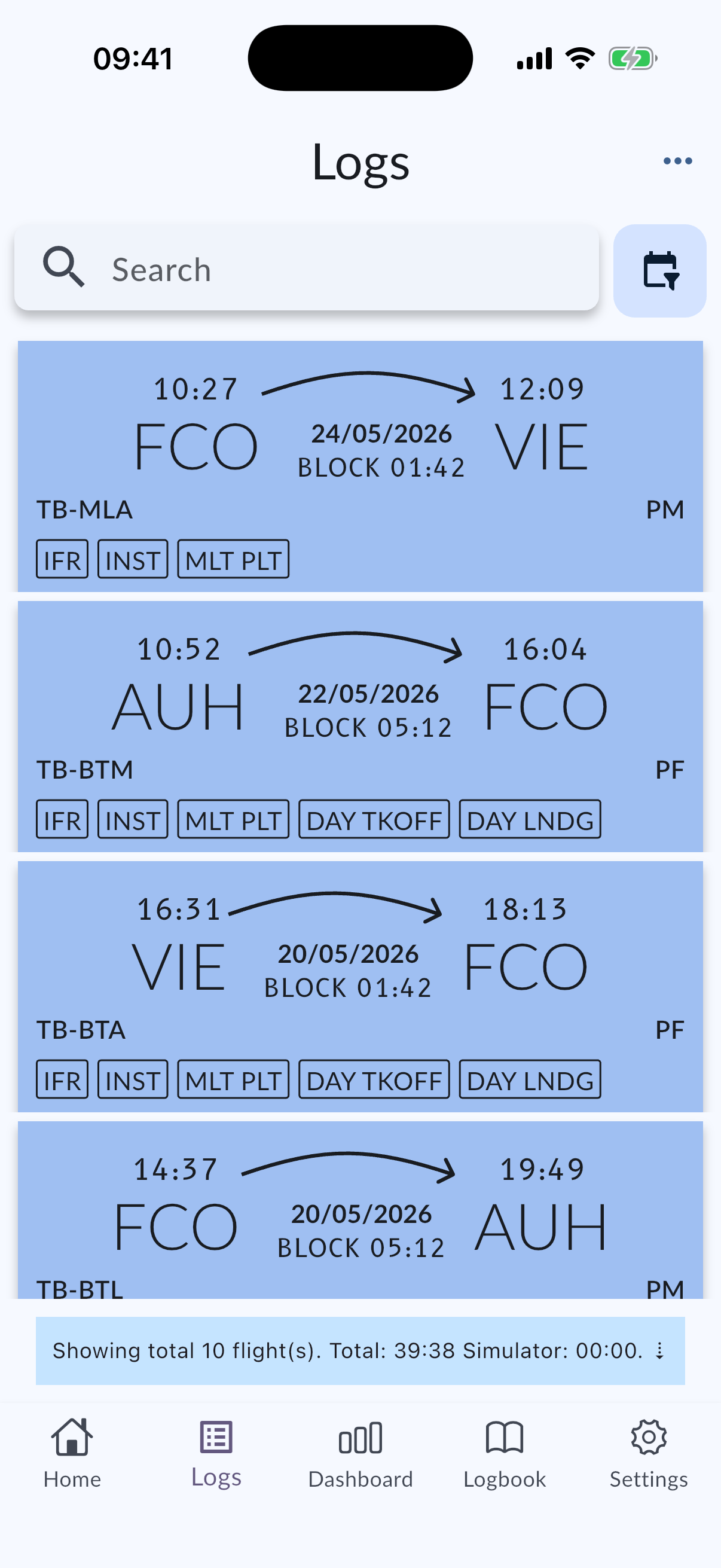
Positioning duties
Positioning entries appear in the same list as flights. Tap a positioning row to open its detail screen, then edit if needed.
When you use Delete Multiple Logs, positioning rows can be included in the selection where the app supports bulk delete.
See Positioning duties and Work with the combined flight and duty timeline.
Search and filter
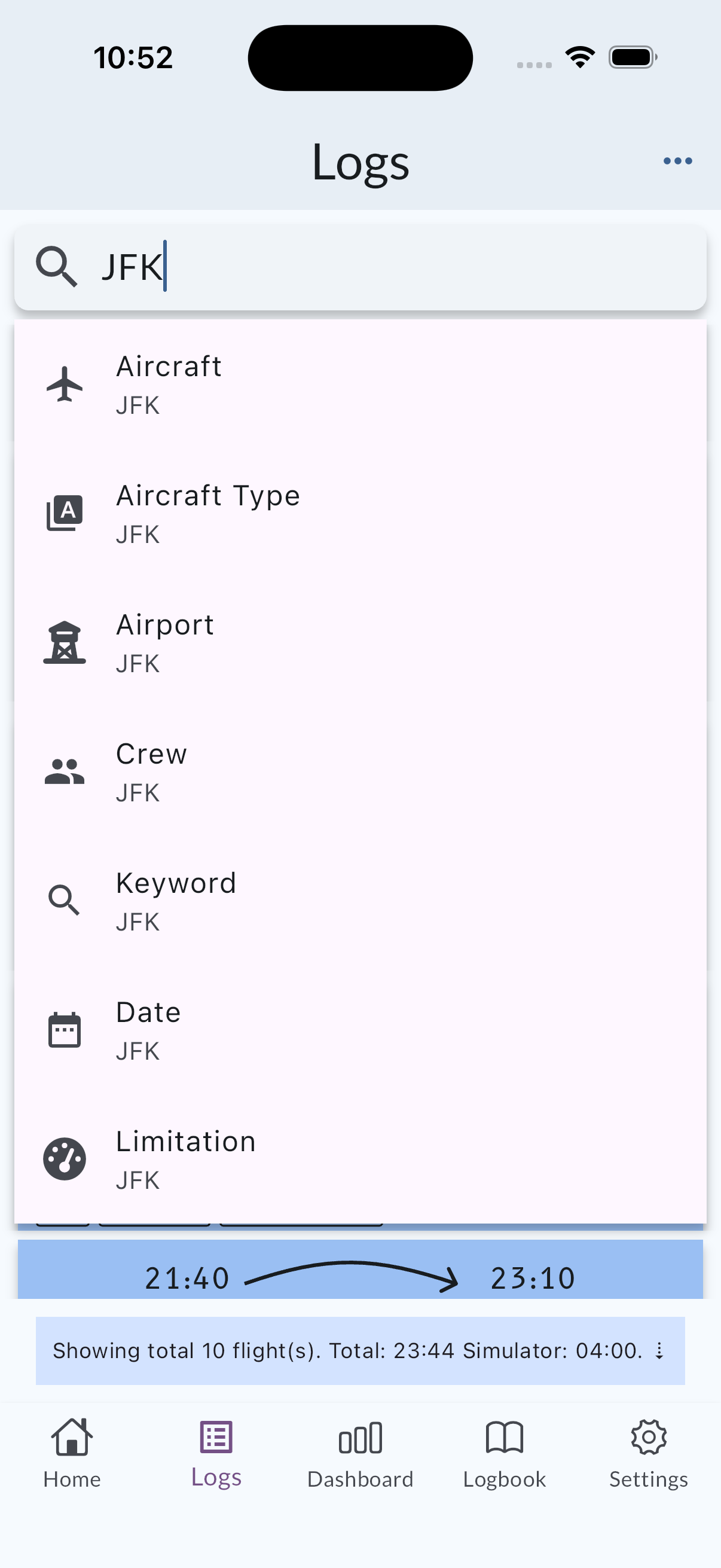
Use the search field at the top of the Logs screen to find records by aircraft, aircraft type, airport, flight crew, keyword, date, and more.
In MyLog 2.6.0, filtering includes more detailed date filters, clearer AND / OR behavior, and automatic filter suggestions based on what you type.
Search Types
- Aircraft
- Aircraft Type
- Airport
- Flight Crew
- Keyword
- Date
This option searches by aircraft registration.
This option searches by aircraft type.
This option searches by airport.
This option searches by flight crew.
This option searches by call sign, flight number, and related text.
This option searches by date.
Date search supports formats such as YYYY-MM-DD or YYYY/MM/DD. You can also search by year (YYYY) or month (MM) when supported by the current filter.
Date filters
Use date filters when you want to focus on a specific period.
On iPhone, date filter options are available from the filter button next to the search field. Tap it to open the filter sheet.
Search options and chips
When you select a search type, MyLog shows the selected filter as a chip above the result list. Remove a filter by tapping the close icon on the chip.
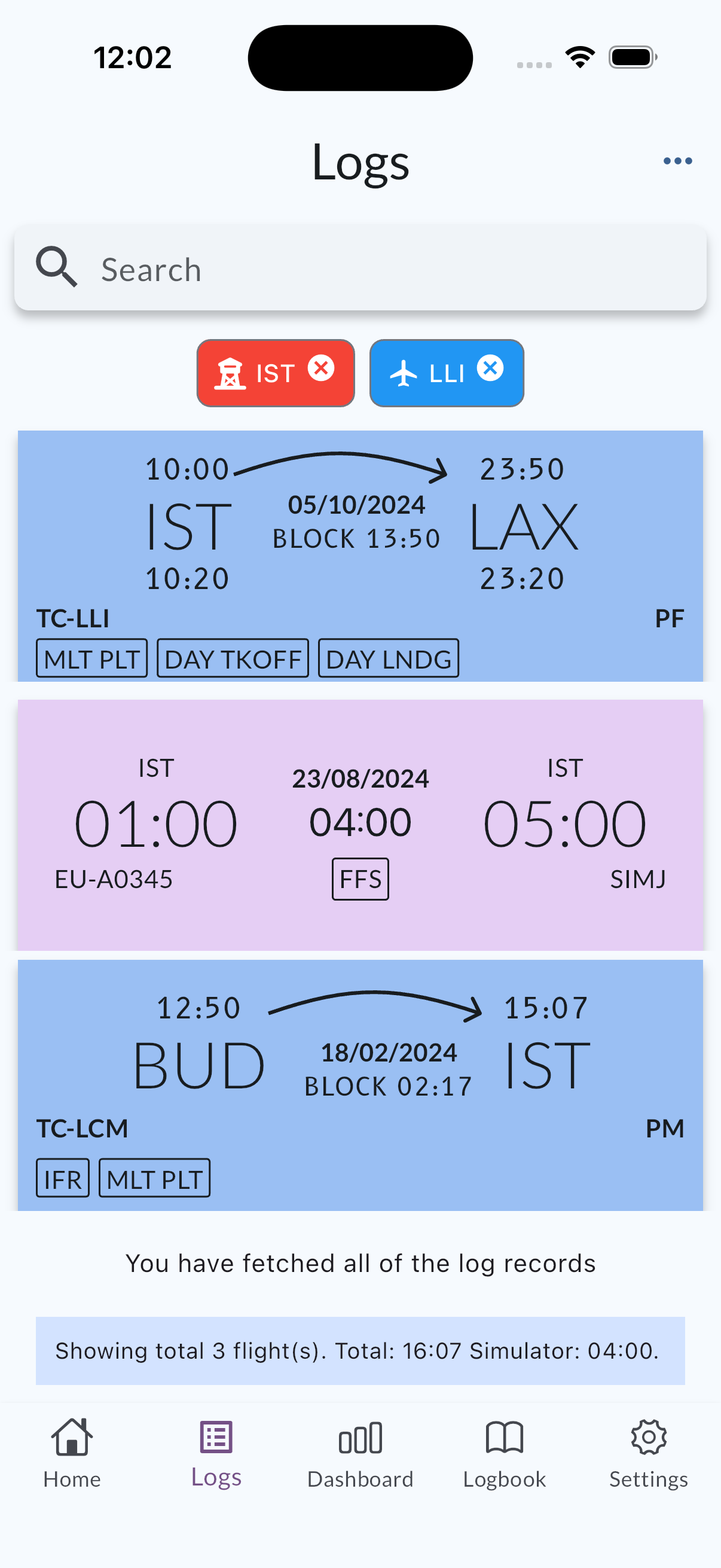
You can search by multiple types at the same time. After selecting the first search type, select another search type to combine filters.
AND and OR behavior
MyLog makes filter combination clearer in 2.6.0.
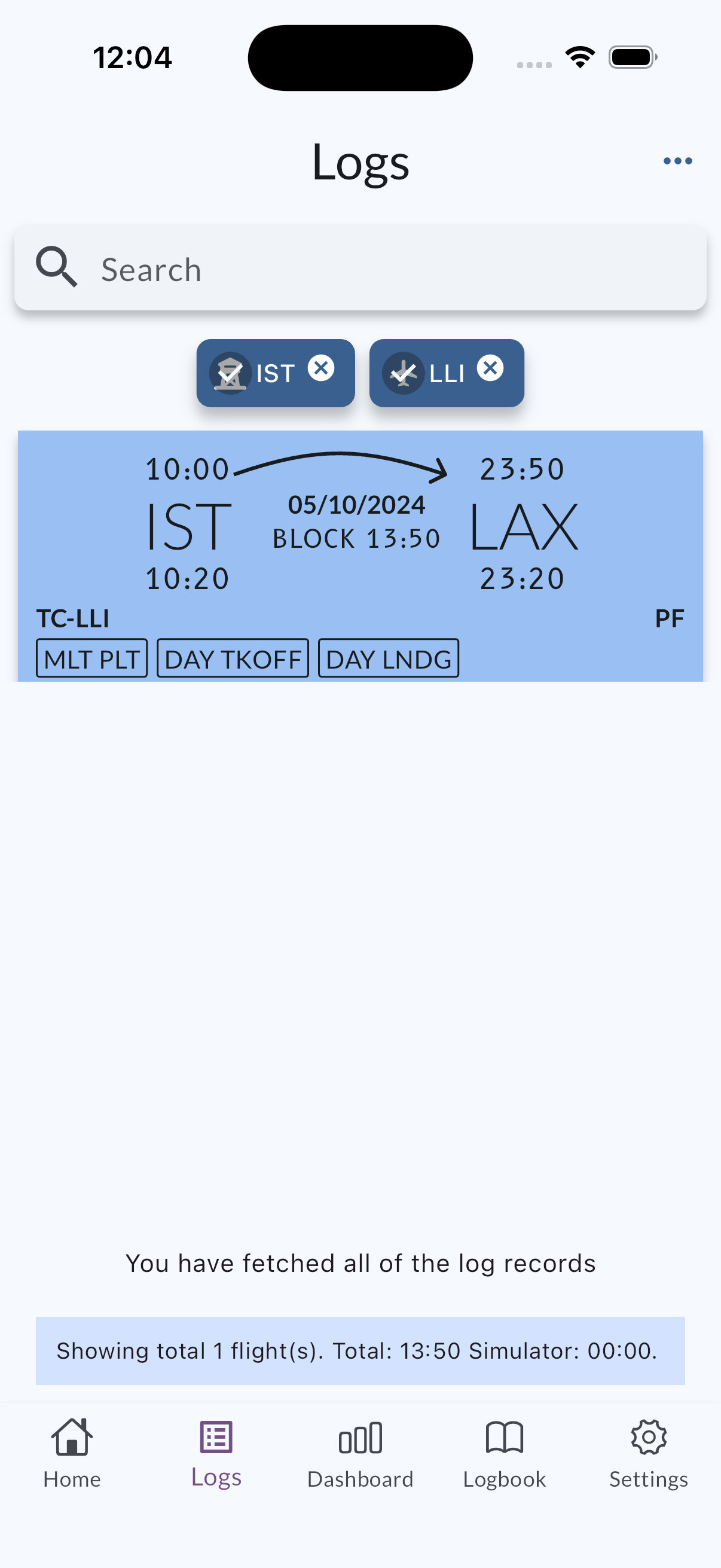
- Use AND when records must match all selected filters.
- Use OR when records can match any selected filter.
If your current UI uses chips to switch behavior, tap the chips to adjust how filters are combined.
Order
You can order your logs by flight date, log date, distance, and time. Tap the menu button in the top-right corner and select the order type.
Tap the selected order type again to change the direction. The default order is flight date, descending.
Export to Excel
You can export search results to Excel from the menu in the top-right corner. When you tap Export To Excel, MyLog asks which export type you want.
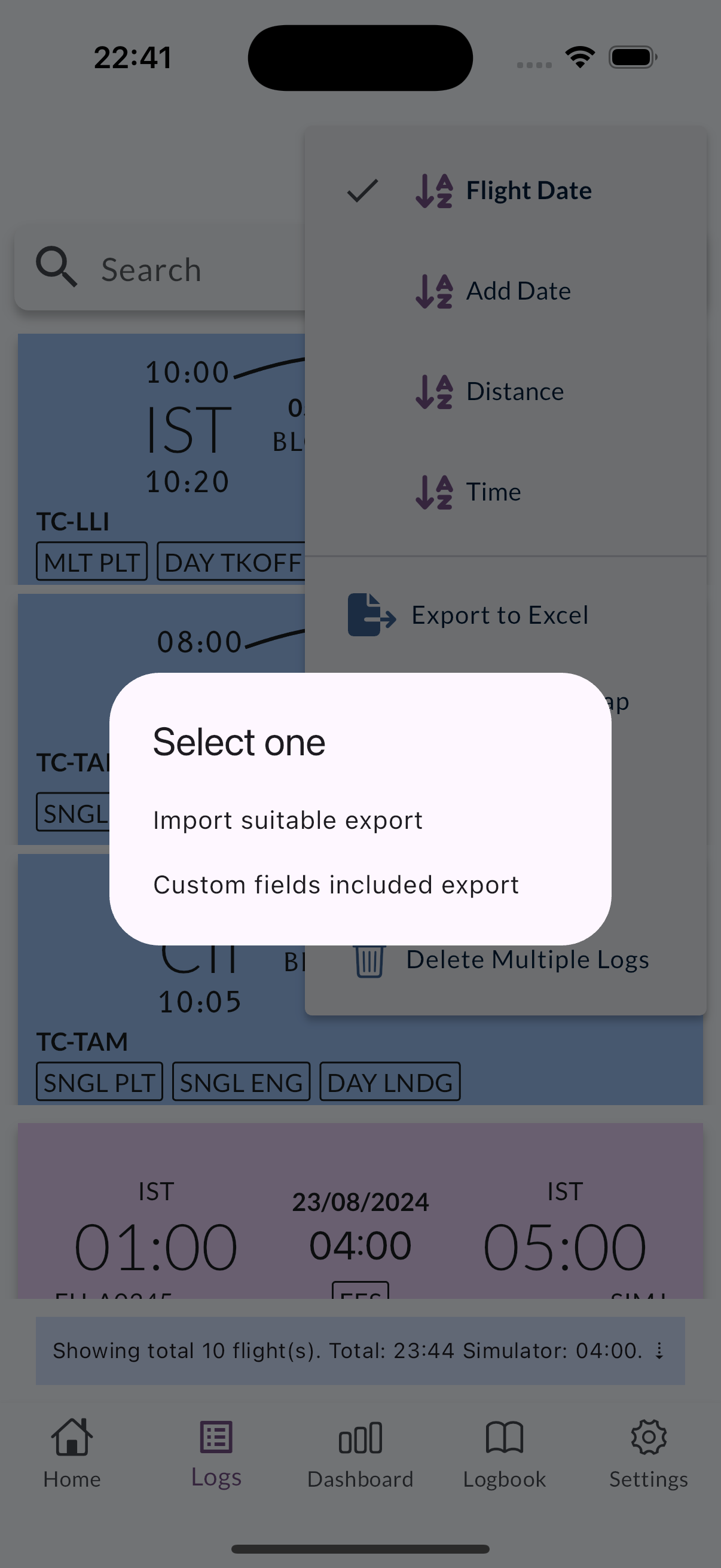
Import Suitable Export exports logs with columns suitable for importing back into MyLog.
Custom fields included export exports logs with all columns, including custom fields.
Show in Flight Map
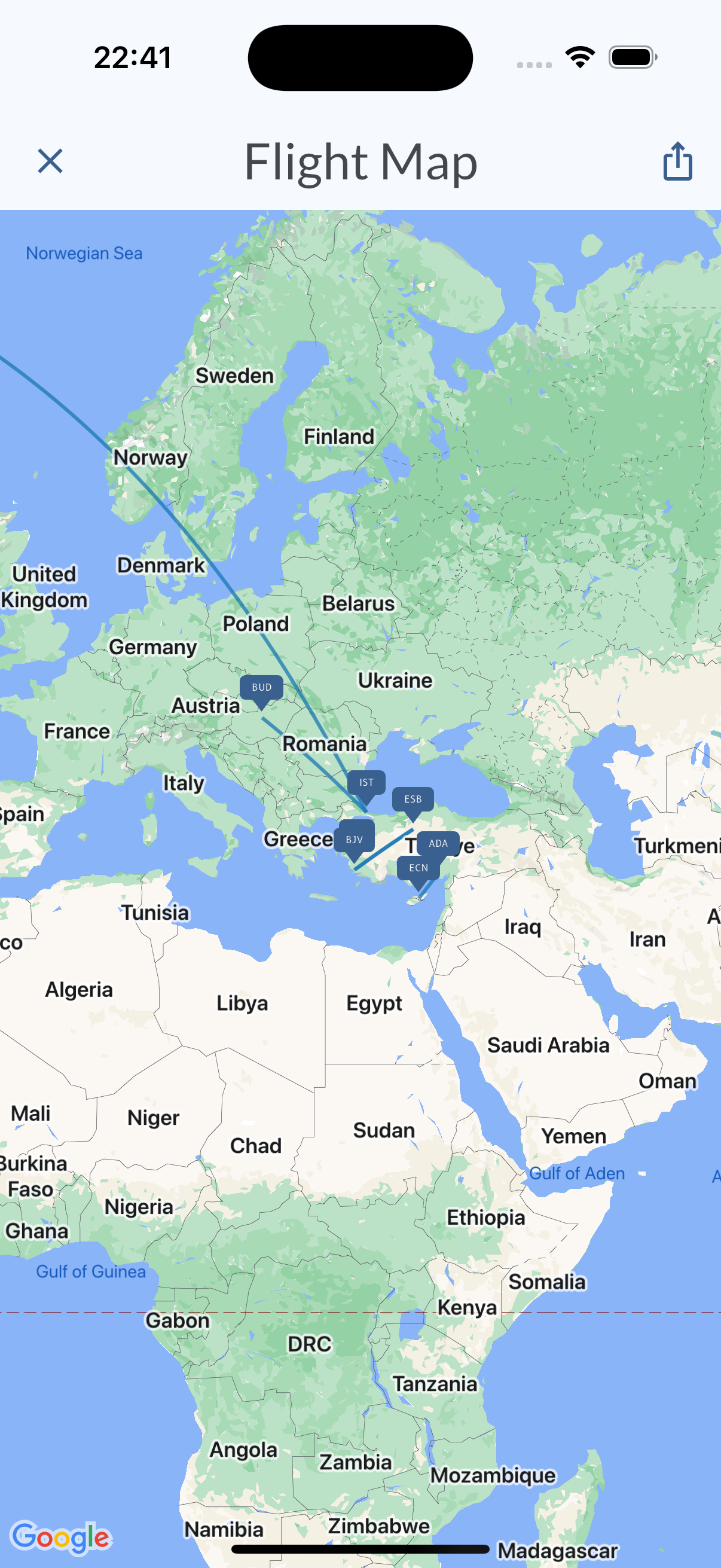
You can see search results on the flight map. Tap the menu button in the top-right corner and select Show in Flight Map.
Show in Logbook
You can see search results in the logbook. Tap the menu button in the top-right corner and select Show in Logbook.
In MyLog 2.6.0, Logbook filtering works across all records, so you can review filtered data directly on the Logbook screen instead of only browsing the full logbook.
Calendar View
Use Calendar View to see logs by month or day. Tap the menu button in the top-right corner and select Calendar View.
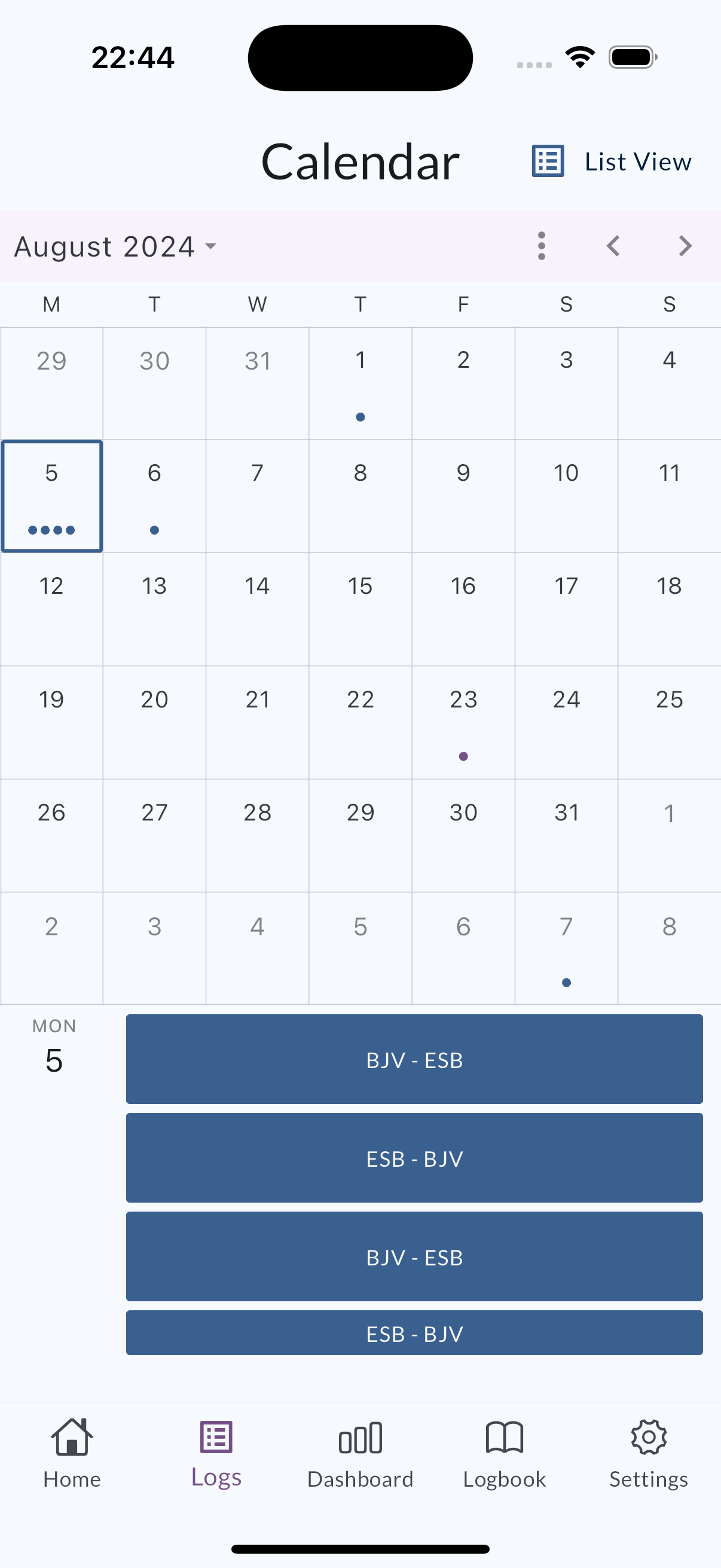
In calendar view, dots represent logged activity on each day. Tap a day with dots to see the related log details at the bottom of the screen. Tap a log to open its details.
To return to list view, tap List View in the top-right corner.
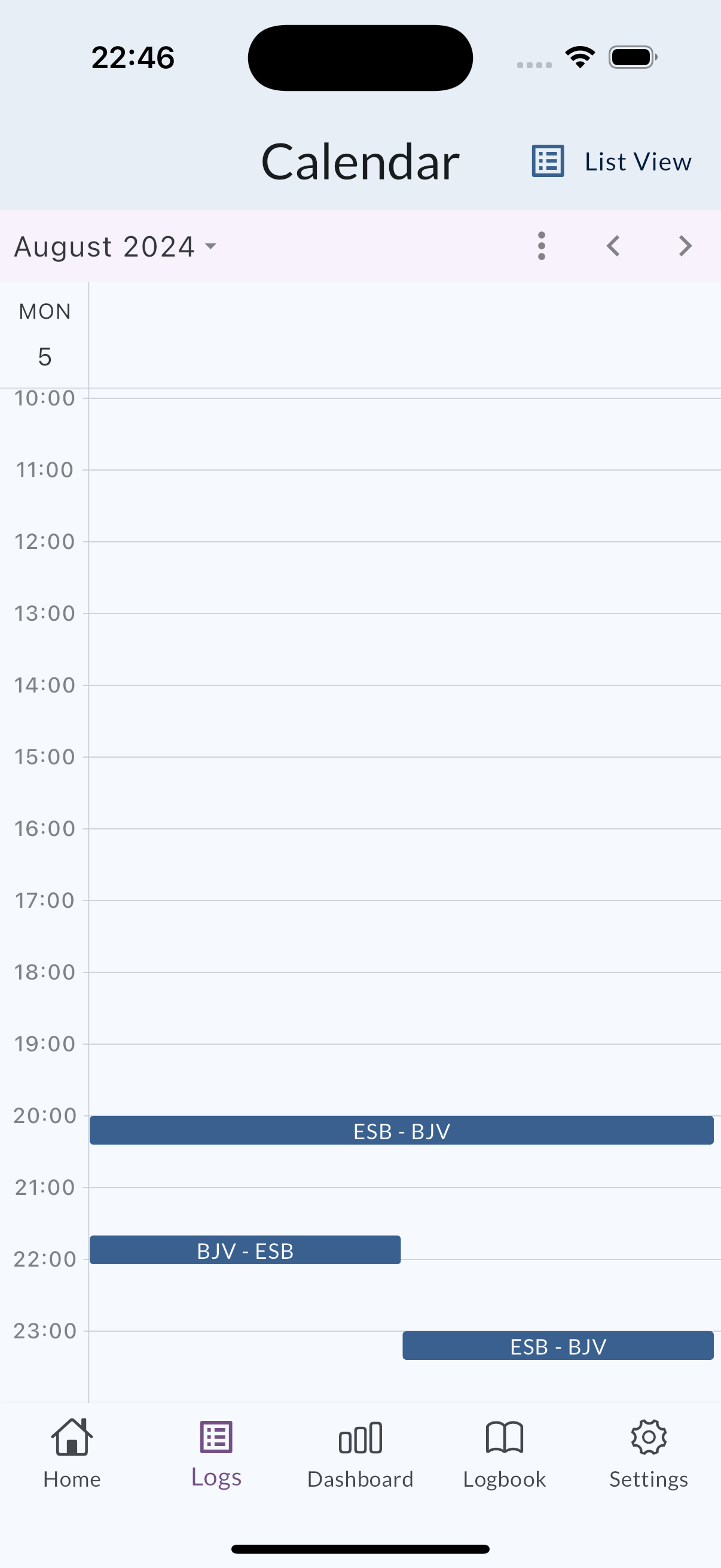
Calendar view has Month and Day views. Day view shows logs for the selected day. Navigate between days using the controls in the top-right corner.
Delete Log
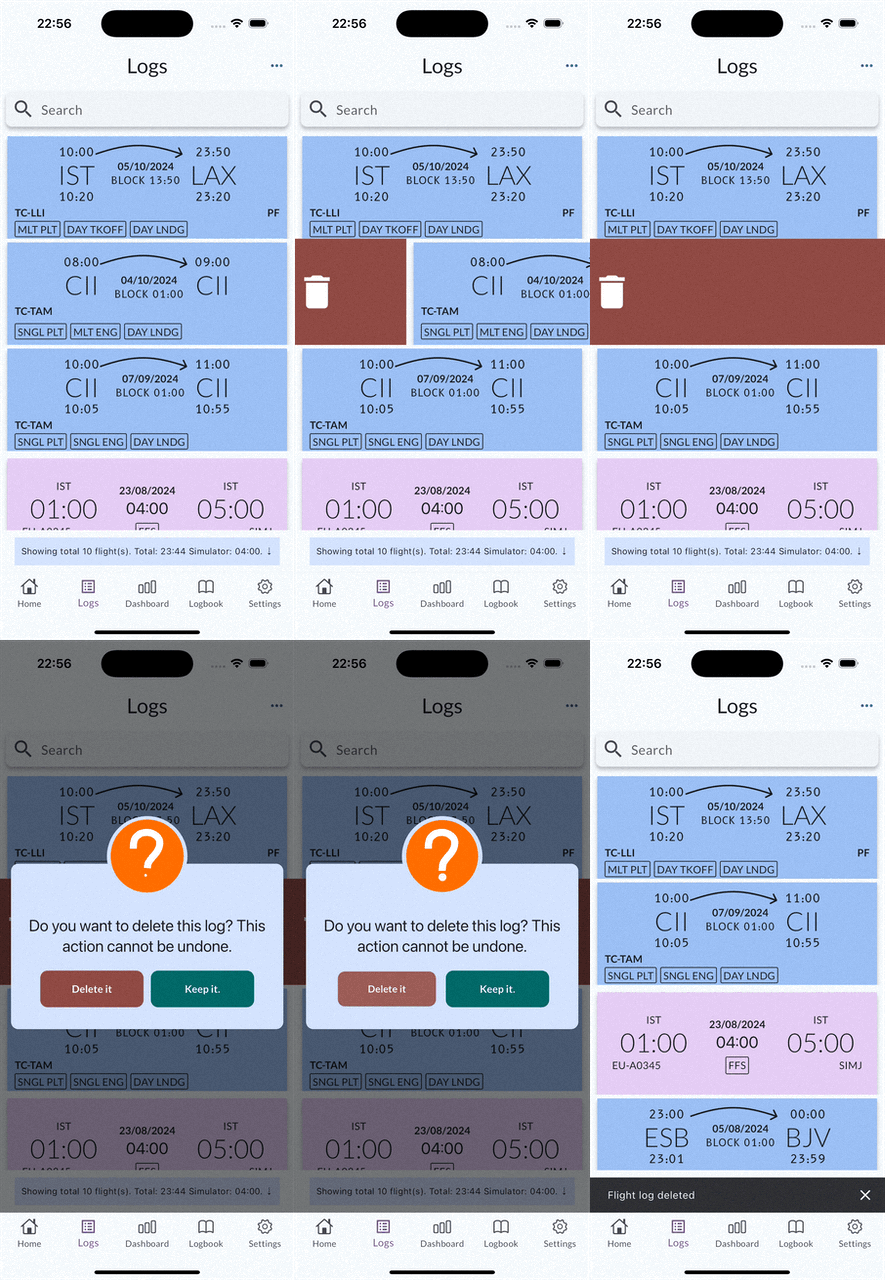
Delete Single Log
Swipe a log left or right to reveal the delete action. Tap the delete button to delete the log.
Delete Multiple Logs
Tap the menu button in the top-right corner and select Delete Multiple Logs.
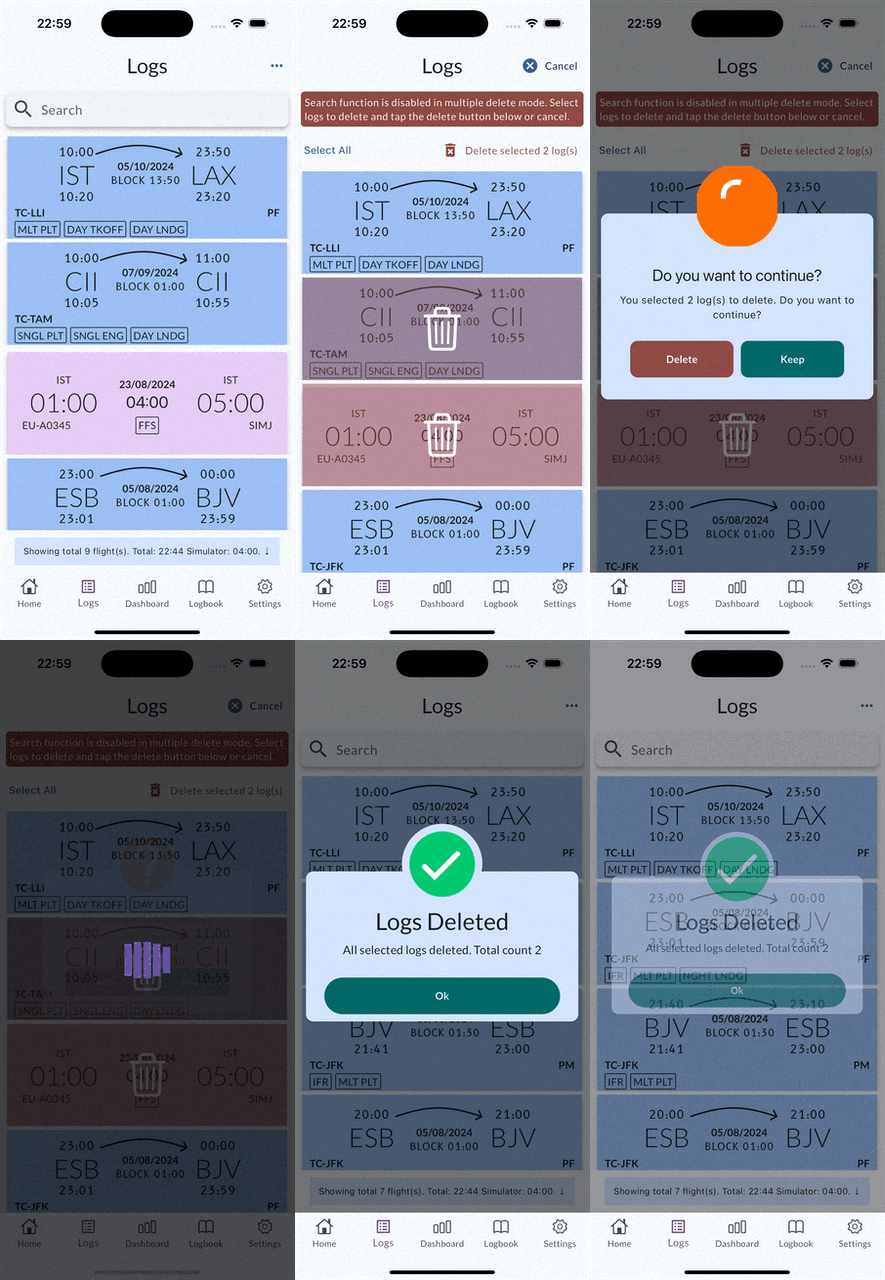
Search is not available in multiple delete mode.
Select logs one by one, or use Select All when available. After selecting records, tap Delete selected (x) logs.