Crew Documents
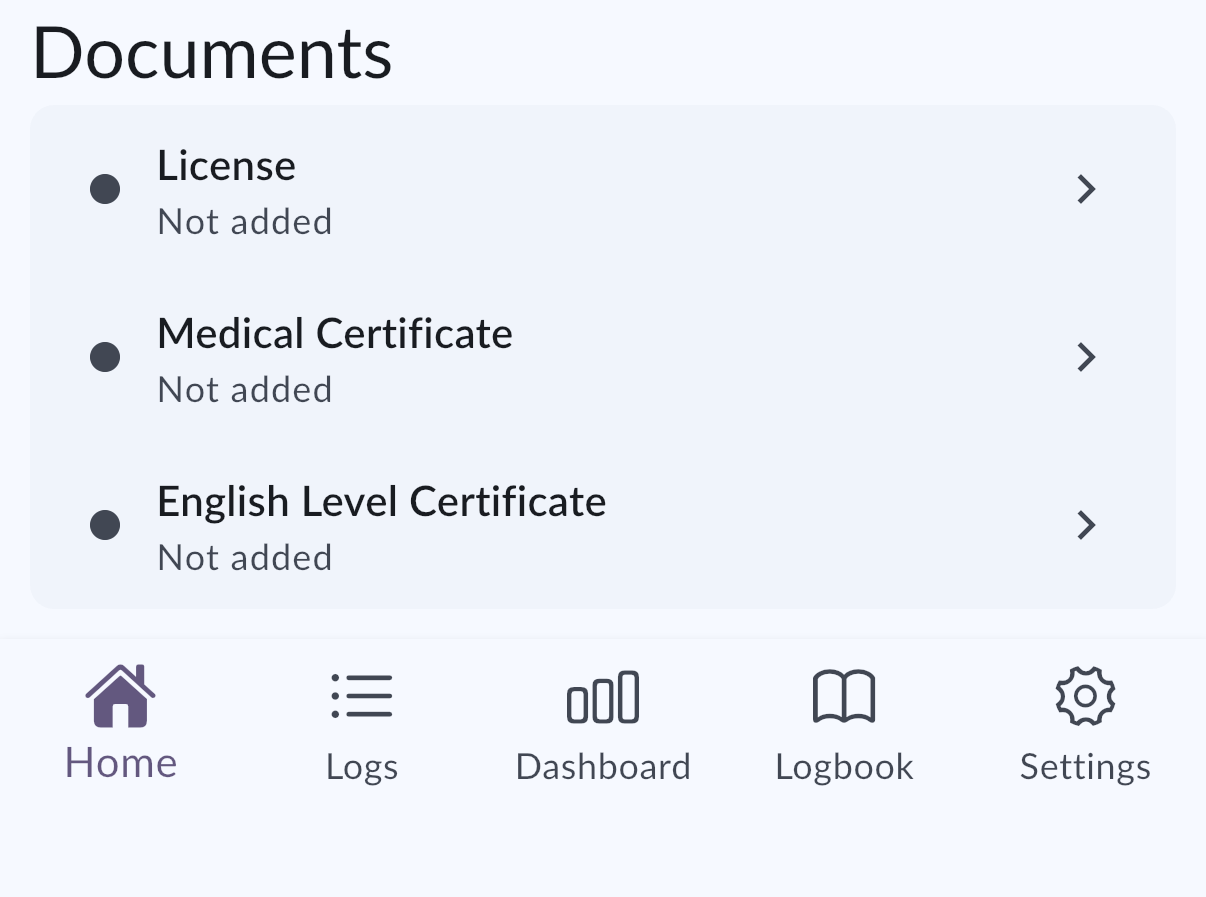
Crew Documents helps you keep important crew-related documents in MyLog, track expiry status, and open document details quickly when something needs attention.
In MyLog 2.6.0, Crew Documents supports PDF attachments in addition to photos, richer details based on document type, expiry status on Home, expiry notifications, and direct links to document details from supported emails or push notifications.
Where to find it
Open Crew Documents from the app area where you manage your documents. Expiry information can also appear on Home when you have documents with expiry status to review.
Add a crew document
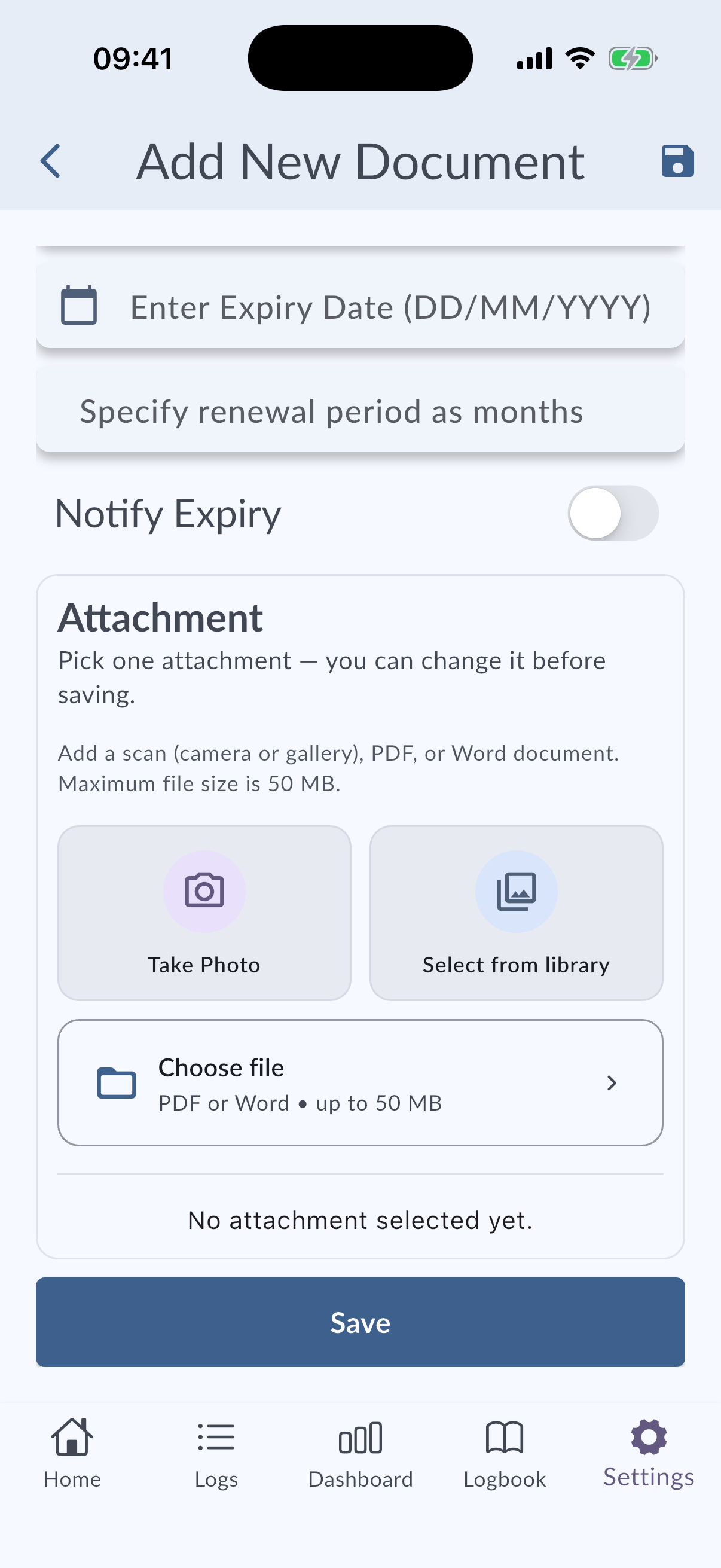
Use Add Document or the equivalent action in Crew Documents to create a new record.
Depending on the document type, MyLog may show additional fields so the record can describe that document more accurately.
You can attach:
- Photos or images.
- PDF files.
Use PDF attachments when your document is already stored as a file, such as a downloaded certificate, license copy, medical document, training record, or company document.
Track expiring documents
MyLog checks document expiry status and can show expiry information on Home. This helps you notice documents that are expired or close to expiring without opening the full Crew Documents list first.
MyLog can also send notifications about documents that need attention. Tap a supported notification or email link to open the related document details directly.
Open document details
Open a document from Crew Documents, Home, an email, or a notification to review its details.
From the detail screen, you can check the document information, expiry status, and attached files.
Tips
- Keep expiry dates updated so Home and notifications remain useful.
- Prefer PDF attachments when you need to preserve the full original document.
- If a document is linked from a notification or email, opening the link should take you directly to that document when possible.