Resume Builder
Resume Builder helps you create job application documents from information already available in MyLog, plus a small amount of additional information that is not stored in your logbook.
You can export the result as PDF or DOCX. Premium users can also use AI writing support for sections such as About Me and Cover Letter, where available.
MyLog 2.6.0 also improves Employment and Education date entry, including manual date entry, and lets you delete resume drafts you no longer need.
Where to find it
Open Settings and choose Resume Builder.
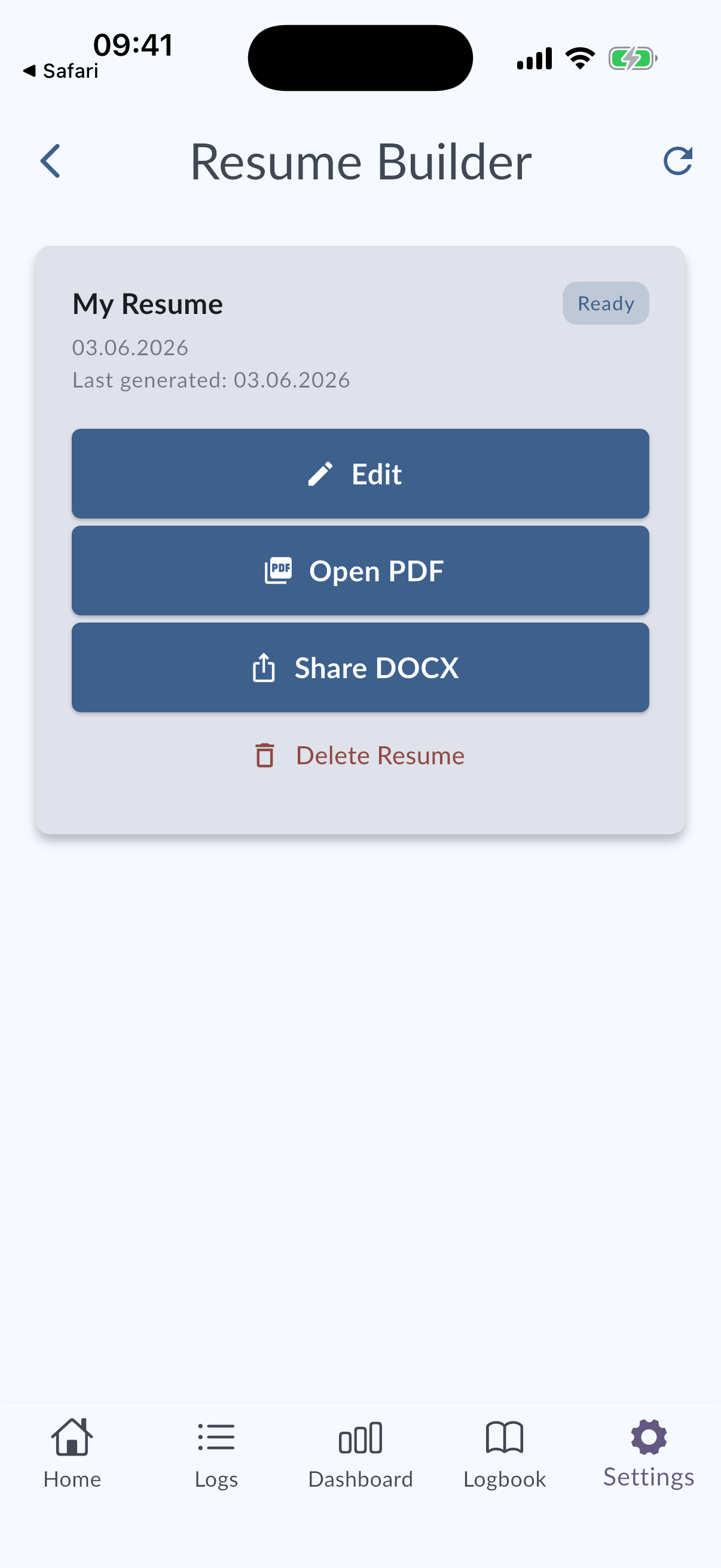
Create a resume
- Open Resume Builder.
- Review the information MyLog can already use from your profile and logbook.
- Fill in any missing information requested by the form.
- Preview or generate the resume.
- Export the resume as PDF or DOCX.
Employment and Education dates
Employment and Education steps include date fields for the relevant experience. In MyLog 2.6.0, these date pickers were improved and manual date entry is supported.
Use manual date entry when choosing from the picker is slower than typing the date directly.
Delete a resume
If you created a resume draft you no longer need, delete it from the Resume Builder list.
AI writing support
Premium users can use AI support to help draft text such as:
- About Me
- Cover Letter
Review AI-generated text before using it in an application. You can edit the text so it matches your experience, tone, and the position you are applying for.
Export formats
Resume Builder supports:
- PDF for sharing a fixed, ready-to-send document.
- DOCX for editing the document in a word processor before sending.
Tips
- Check your profile details before generating a resume.
- Keep license, company, and flight experience information up to date in MyLog.
- Review every generated document manually before sending it to an employer.
- Keep a DOCX copy if you plan to customize the resume for different applications.