Logging & Logbook Settings
MyLog offers a lot of settings to customize your logging and logbook experience. You can access these settings via Settings screen. You can navigate Settings screen via bottom navigation bar (on phones) or left navigation bar (on tablets).
Logging Format Settings
Format
Different aviation authorities may require different logging formats. MyLog supports EASA, FAA and Canadian logbook formats. You can select your preferred logging format via Logging Format setting.
When you select a logging format, MyLog will ask you to add predefined limitations for that authority written in the official documents.
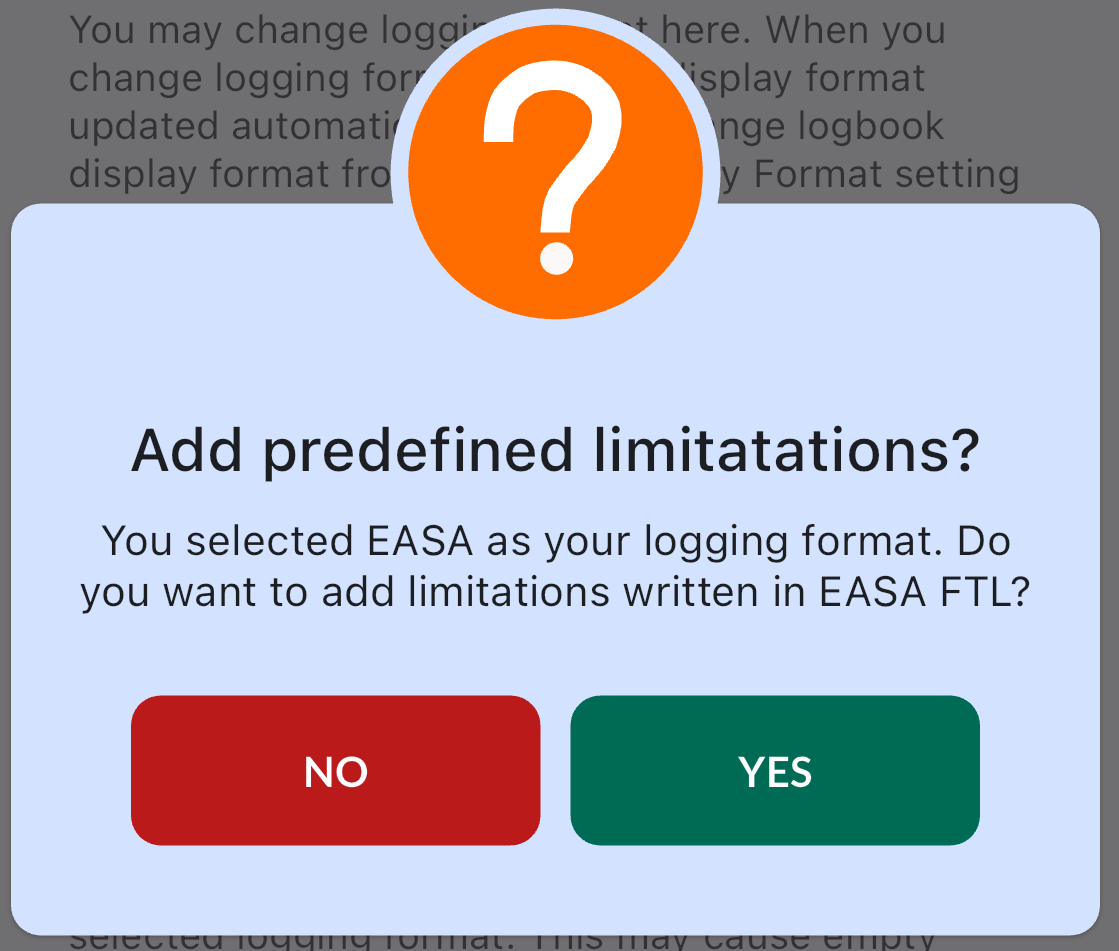
You can read more Adding Predefined Limitations section.
Display Format Setting
In some cases you may want to log your flights in one format and display them in another format. For example, you may want to log your flights in EASA format but display them in FAA format. MyLog offers a setting to change display format. You can change display format via Display Format setting.
Show Incompatible Logs
If your logbook contains different formatted logs, you can choose to show them or not.
If you choose to show incompatible logs, MyLog will try to display all fields that is possible to display. But you may see empty fields in your logbook.
Show times in double format
If you don't want to enter or see times in hour format (HH:MM), you may prefer to enter or see times in double format (HH.HH).
Default Values Settings
Start flights from base airport
If you select your base airport, MyLog will automatically fill departure airport field with your base airport. Also MyLog will eleminate this airport from Most Flown Airports list.
PIC
If you enable this option, MyLog will automatically enable PIC time field when you create a new log.
IFR
If you enable this option, MyLog will automatically enable IFR time field when you create a new log.
Dual
If you enable this option, MyLog will automatically enable Dual time field when you create a new log.
Instructor
If you enable this option, MyLog will automatically enable Instructor time field when you create a new log.
Use Flight Times
If you enable this option, you will see Take Off and Landing time fields beside Block On and Block Off time fields.
Use Takeoff Counts
By default, MyLog only counts landings. If you enable this option, MyLog will count takeoffs too. You will see Takeoff count when you create a new log.
Use Call Sign
If you enable this option, you will see Call Sign field when you create a new log.
Summarized Simulator Records
If you enable this option, MyLog won't fill Date, Departure, Destination, Block Off and Block On times for simulator records in Logbook View.
Show Simulated IFR Time
If you enable this option, you will see Simulated IFR time field when you create a new log.
Use Rest Time
If you have rest times in your flight and you want to log it, you may enable this option. You will see Rest time field when you create a new log.
Use Automatic Rest Time
When you enable Use Rest Time option, you will see Use Automatic Rest Time option. If you enable this option, MyLog will automatically calculate rest time for you.
Automatic rest time is calculated by dividing Block Time to flight crews count in the log.
Log CoPilot When PM
When this is enabled, the CoPilot time will be logged when the PM is selected
Rows Per Page
By default, MyLog shows 16 rows in a logbook page. You can change this value between 0 and 100.
0 means, show all logs in one page.