Widgets, shortcuts, Siri, and Apple Watch
MyLog can surface common actions and useful logbook information outside the main app. Depending on your device, you can use widgets, quick actions, shortcuts, Siri, Spotlight, Live Activity, Dynamic Island, and Apple Watch screens.
Availability
Some integrations are platform-specific:
- iOS and Android: Home screen widgets and app quick actions.
- iOS: Siri, Spotlight shortcuts, Control Center shortcuts, Live Activity, Dynamic Island, and Apple Watch.
- Android: App shortcuts, App Actions, and supported app indexing/deep link surfaces.
Exact availability can depend on your operating system version and device.
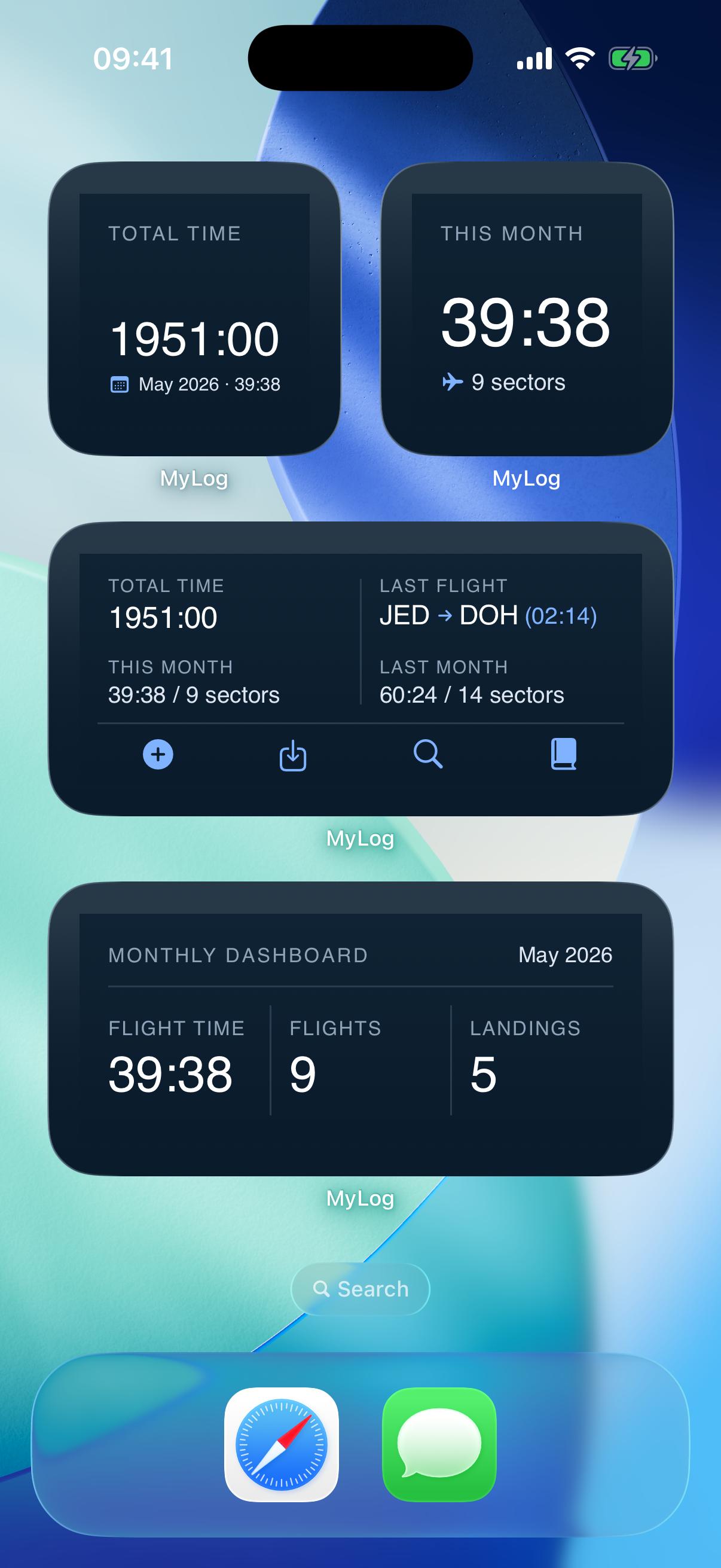
Home screen widgets
Widgets let you see MyLog information without opening the app. MyLog includes multiple widget sizes, from small summary widgets to larger layouts.
Use widgets for quick access to important logbook information such as recent activity, totals, or progress-style summaries.
If a widget does not update immediately, open MyLog once and allow it to finish syncing. Widget data can depend on the latest local app data.
Quick actions and shortcuts
Long-press the MyLog app icon to access quick actions such as Add Log and Import Data.
On supported iOS versions, you can also add MyLog actions to places such as Control Center or Shortcuts.
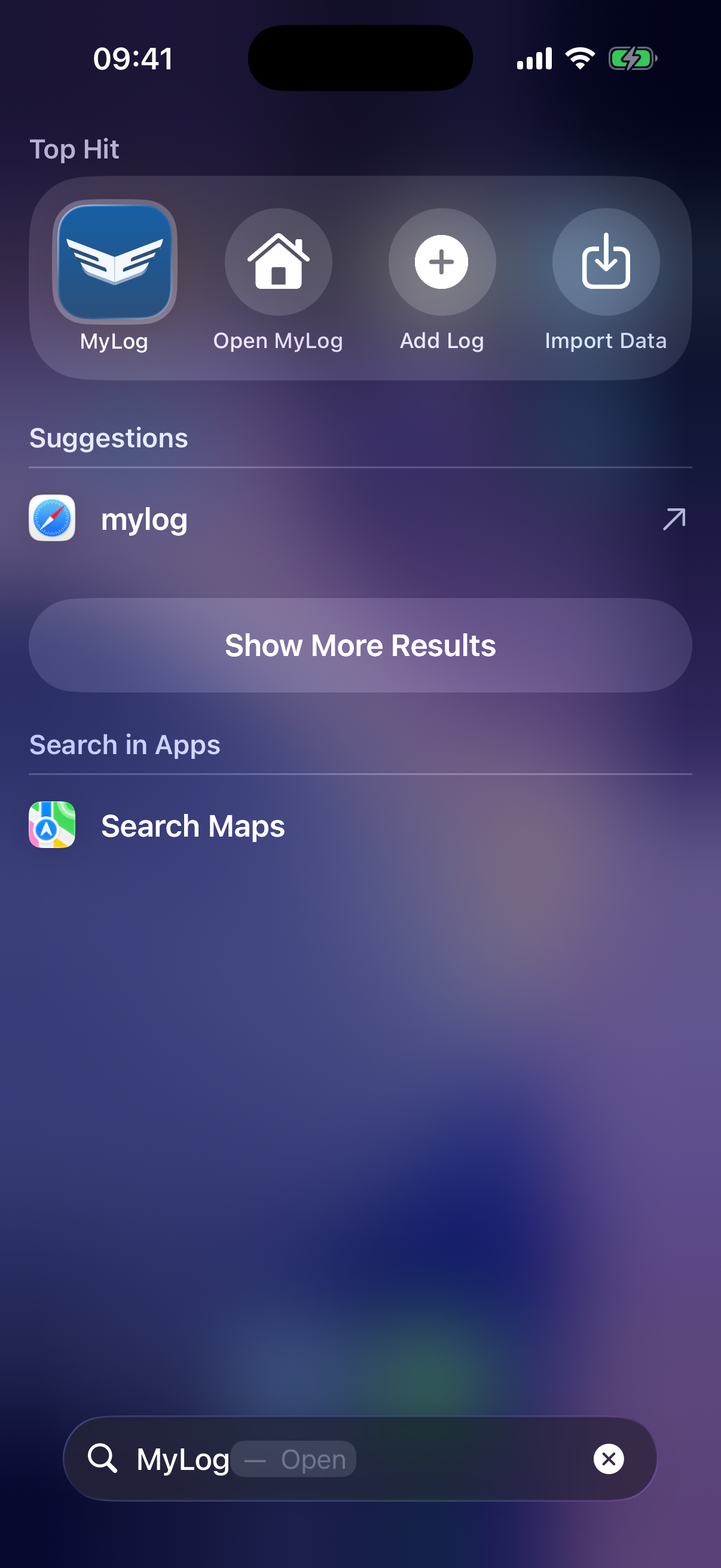
Siri and Spotlight
On iOS, MyLog supports Siri and Spotlight shortcuts for common actions. You can use commands such as Add Log or Import Data where supported.
Spotlight can also show MyLog shortcuts so you can start common flows from system search.
Live Activity and Dynamic Island
When you use Live Flight, supported iPhone models can show flight information through Live Activity and Dynamic Island.
Use this to follow live flight status without keeping the app open.
Apple Watch
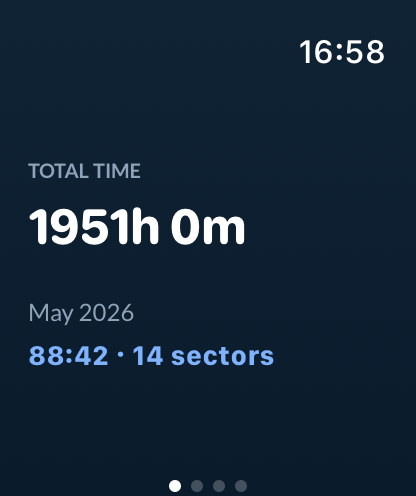
MyLog on Apple Watch includes screens for:
- Total hours.
- Monthly hours.
- Sectors.
- Last three flights.
- Live Flight controls, where supported.
Capture Log from the share menu
On iOS and Android, MyLog can appear in the system share menu for supported screenshots or files. This makes it easier to send a screenshot into Capture Log or send an import file into Smart Import.
For Capture Log details, see Capturing Times.