Positioning duties
Positioning entries record positioning duties with route and block-style time. You can add notes, choose whether the duty counts as a sector for monthly sector totals (when sector tracking is used), open a detail screen from lists, edit the record, and delete it—similar to other log types.
Where positioning appears
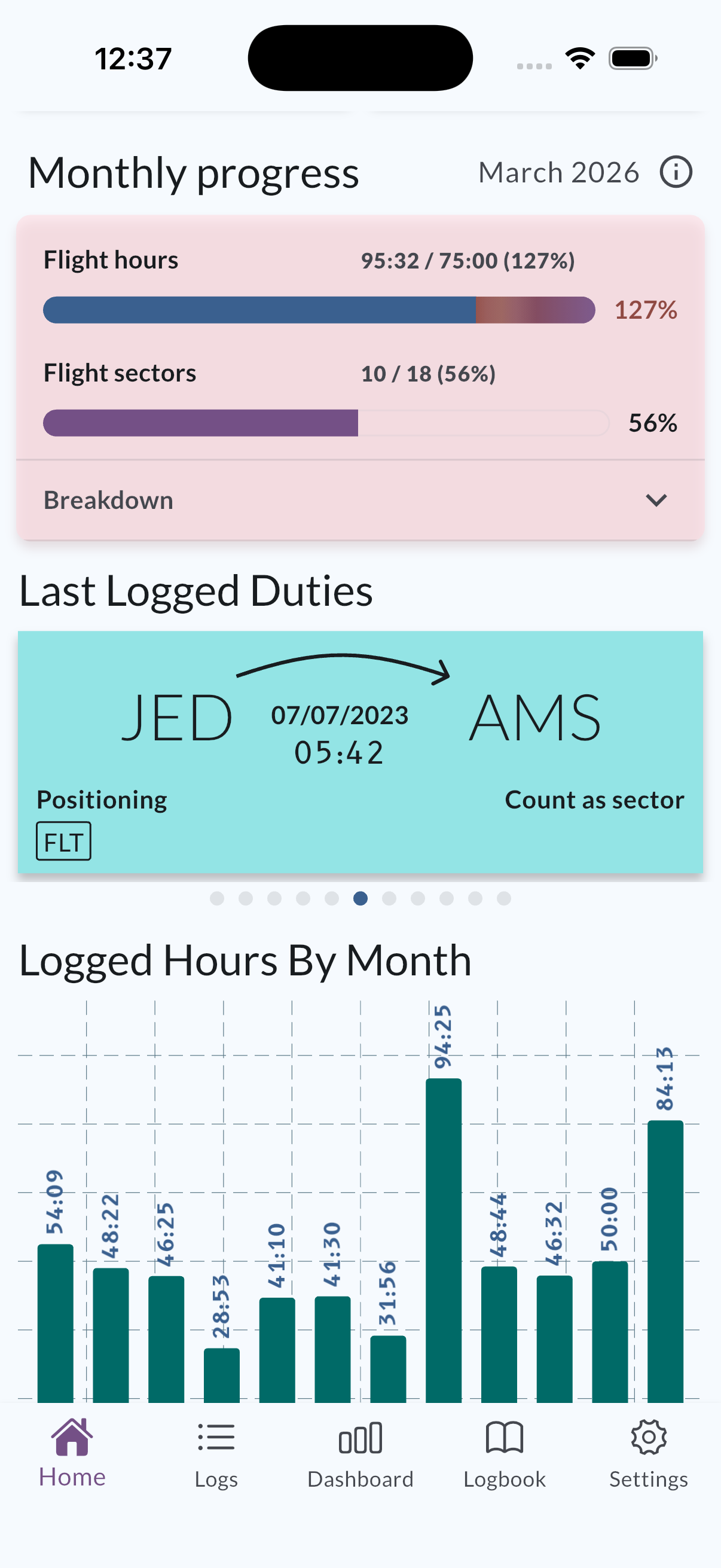
- Home: Recent duties can surface on the home carousel with route, date, duration, and positioning labeling.
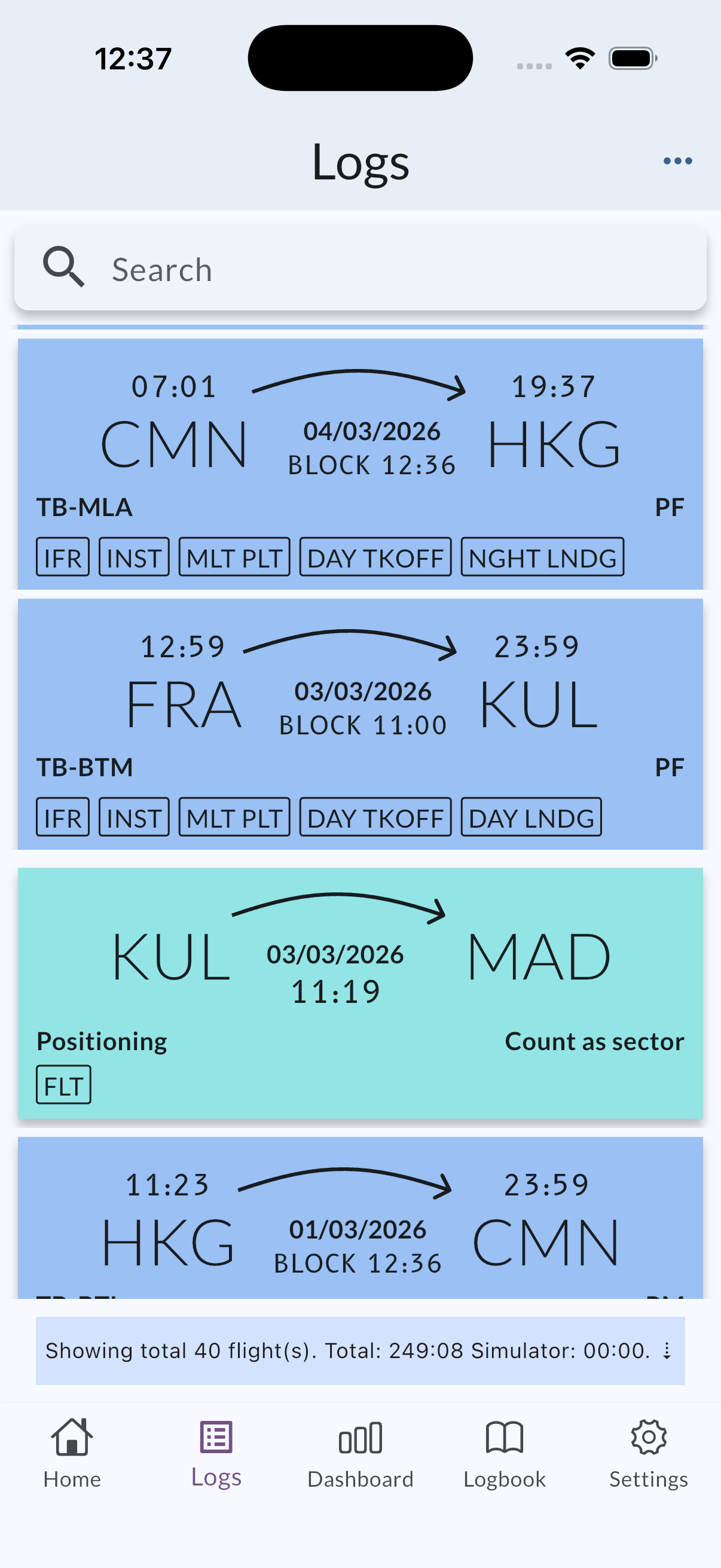
- Logs timeline: Positioning rows appear alongside flights. Tap a positioning row to open its detail screen; from there you can move to edit on the positioning screen.
Creating a positioning entry
Use the app’s positioning flow to enter departure and destination, block times, optional notes, and whether the duty should affect the sector count for the month. The choice is stored as one sector or none for totals—there is no separate intermediate value.
Sector counting
When count as sector (or equivalent wording in your language) is on, the duty contributes one sector toward monthly sector totals where sector tracking applies. When it is off, it contributes none. This lines up with how monthly progress presents sector targets; see Monthly progress and targets.
Viewing and editing from detail
From the positioning detail screen you can review the full record and navigate to edit on the positioning log screen to change fields you are allowed to edit.
Deleting positioning entries
You can delete a positioning entry from its detail screen (with confirmation), and—where the app supports multi-select on the flight timeline—from bulk selection workflows on the Logs screen. Behavior matches other offline-first logs you already use in MyLog.