Widgets, shortcuts, Siri, and Apple Watch
MyLog can surface common actions and useful logbook information outside the main app. Depending on your device, you can use widgets, quick actions, shortcuts, Siri, Spotlight, Live Activity, Dynamic Island, and Apple Watch screens.
Availability
Some integrations are platform-specific:
- iOS and Android: Home screen widgets and app quick actions.
- iOS: Siri, Spotlight shortcuts, Control Center shortcuts, Live Activity, Dynamic Island, and Apple Watch.
- Android: App shortcuts, App Actions, and supported app indexing/deep link surfaces.
Exact availability can depend on your operating system version and device.
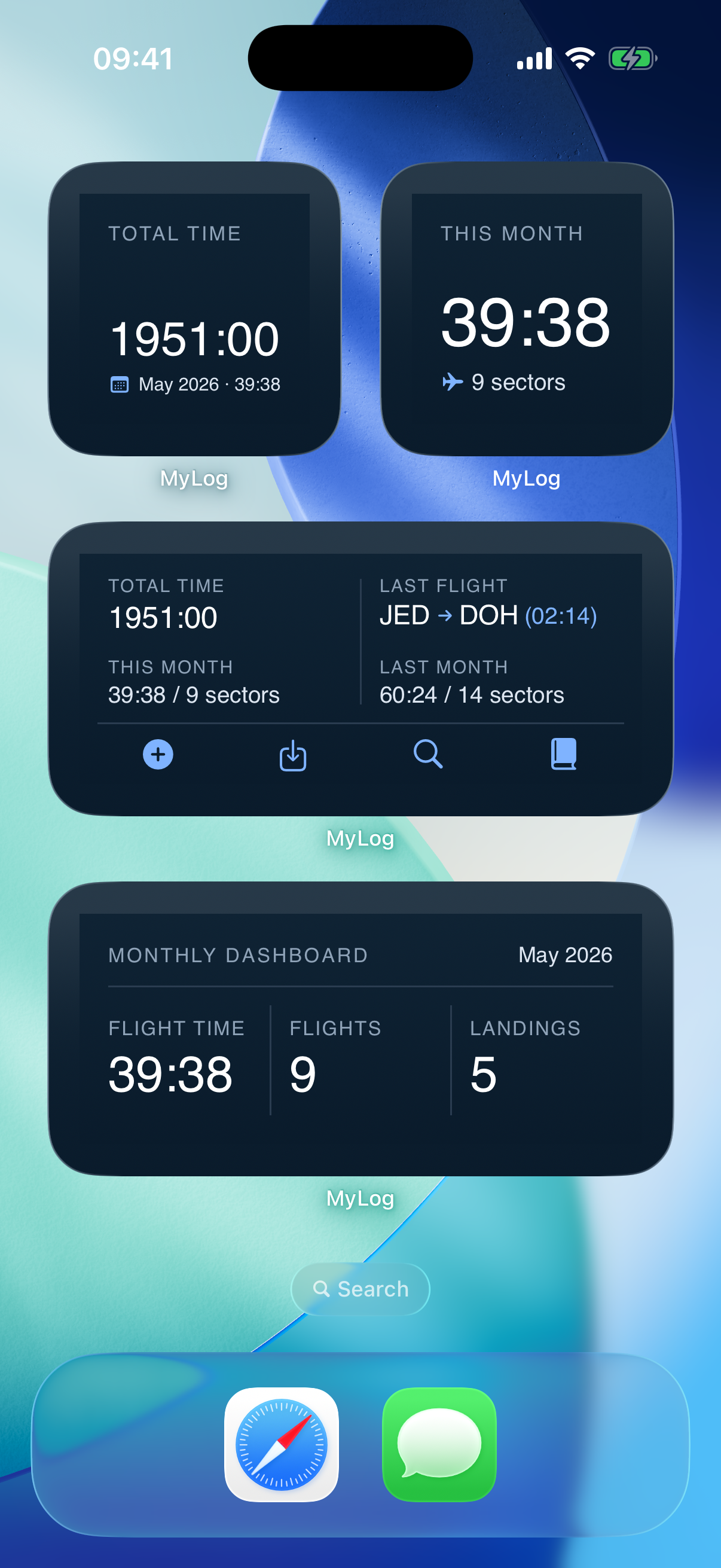
Home screen widgets
Widgets let you see MyLog information without opening the app. MyLog includes multiple widget sizes, from small summary widgets to larger layouts.
Use widgets for quick access to important logbook information such as recent activity, totals, or progress-style summaries.
Choose the hour type for a Total Time widget
Total Time widgets show Total Time by default, but you can choose any logbook hour type for each widget separately, such as PIC, IFR, Dual, Night or Simulator.
- iOS: the choice is available on the small, medium and large widgets and on Lock Screen widgets. Edit the widget and choose the hour type in the widget settings.
- Android: the choice is available on the small, main and large widgets. Tap the hours field on the widget to change the hour type.
Positioning time is added to Total Time only. Monthly statistics, last flights and shortcuts on the widgets do not change with the hour type.
Salary widgets
If you use the Salary Calculator and turn on Show salary on home screen and watch, a small widget shows your monthly estimate and a larger widget shows the breakdown. These widgets cannot ask for device authentication, so anyone who sees your screen may see your salary.
If a widget does not update immediately, open MyLog once and allow it to finish syncing. Widget data can depend on the latest local app data.
Quick actions and shortcuts
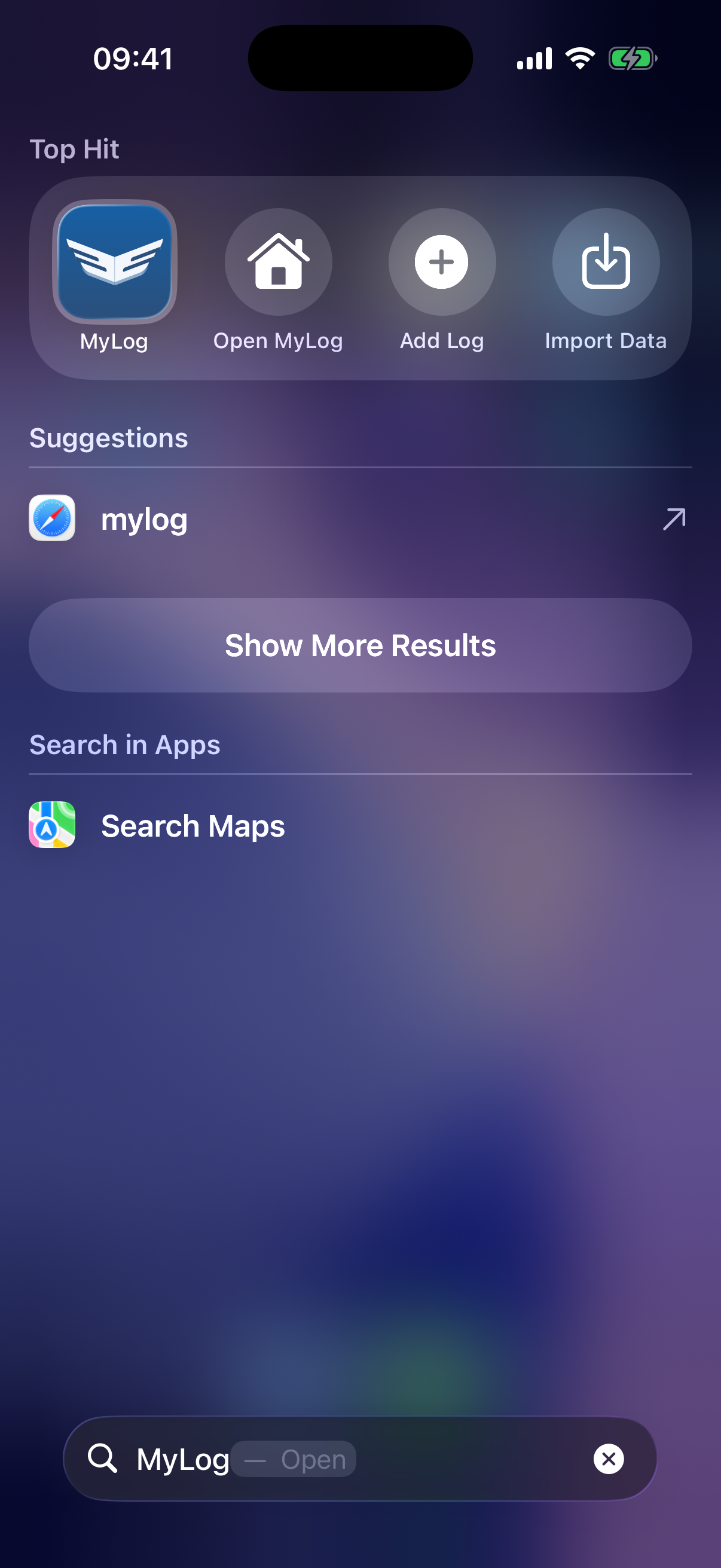
Long-press the MyLog app icon to access quick actions such as Add Log and Import Data.
On supported iOS versions, you can also add MyLog actions to places such as Control Center or Shortcuts.
Siri and Spotlight
On iOS, MyLog supports Siri and Spotlight shortcuts for common actions. You can use commands such as Add Log or Import Data where supported.
Spotlight can also show MyLog shortcuts so you can start common flows from system search.
Live Activity and Dynamic Island
When you use Live Flight, supported iPhone models can show flight information through Live Activity and Dynamic Island.
Use this to follow live flight status without keeping the app open.
Apple Watch
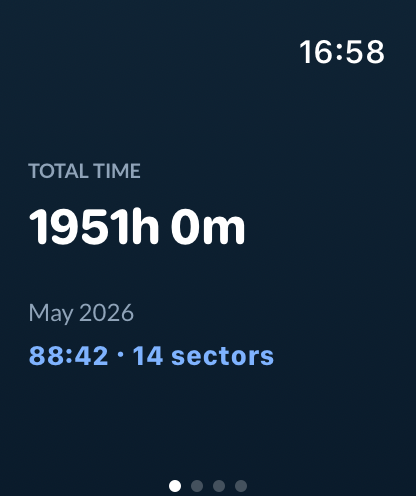
MyLog on Apple Watch includes screens for:
- Total hours.
- Monthly hours.
- Sectors.
- Last three flights.
- Live Flight controls, where supported. Start Flight on the watch starts the flight timer in MyLog on your iPhone. If the watch and iPhone briefly lose their connection, the command and the timer state are delivered when the connection returns.
- A salary page, when you use the Salary Calculator and turn on Show salary on home screen and watch.
Positioning records are included in the data that the Apple Watch and widgets show.
Capture Log from the share menu
On iOS and Android, MyLog can appear in the system share menu for supported screenshots or files. This makes it easier to send a screenshot into Capture Log or send an import file into Smart Import.
For Capture Log details, see Capturing Times.