EASA FTL Tracking
EASA FTL tracking is an optional feature that follows your Flight Time Limitations while you log. MyLog builds your duties from your flight, positioning, simulator and standby records, calculates the Flight Duty Period (FDP) and rest that apply, and shows live counters so you can see how much FDP you have left and when your rest ends.
MyLog FTL guidance is an advisory assistant only. Your operator's approved FTL scheme and operational control always take precedence. FTL tracking never blocks you from saving an entry.
Before you start
- FTL tracking applies to pilots who fly under EASA Flight Time Limitations.
- You need a home base airport in your profile. If you try to turn FTL on without one, MyLog asks you to set it first. See Profile.
- Airport time zones are used for the calculations. If an airport has no time zone, the result is marked Limited result and the guidance may be incomplete.
Turn FTL tracking on
- Open Settings, then Logging & Logbook Settings, then FTL Tracking.
- Turn on Enable EASA FTL tracking.
- Read the Advisory FTL tool message and tap I understand.
Turning tracking off stops FTL calculations. While tracking is on, you cannot delete your base airport. To remove it, turn FTL tracking off first.
FTL settings
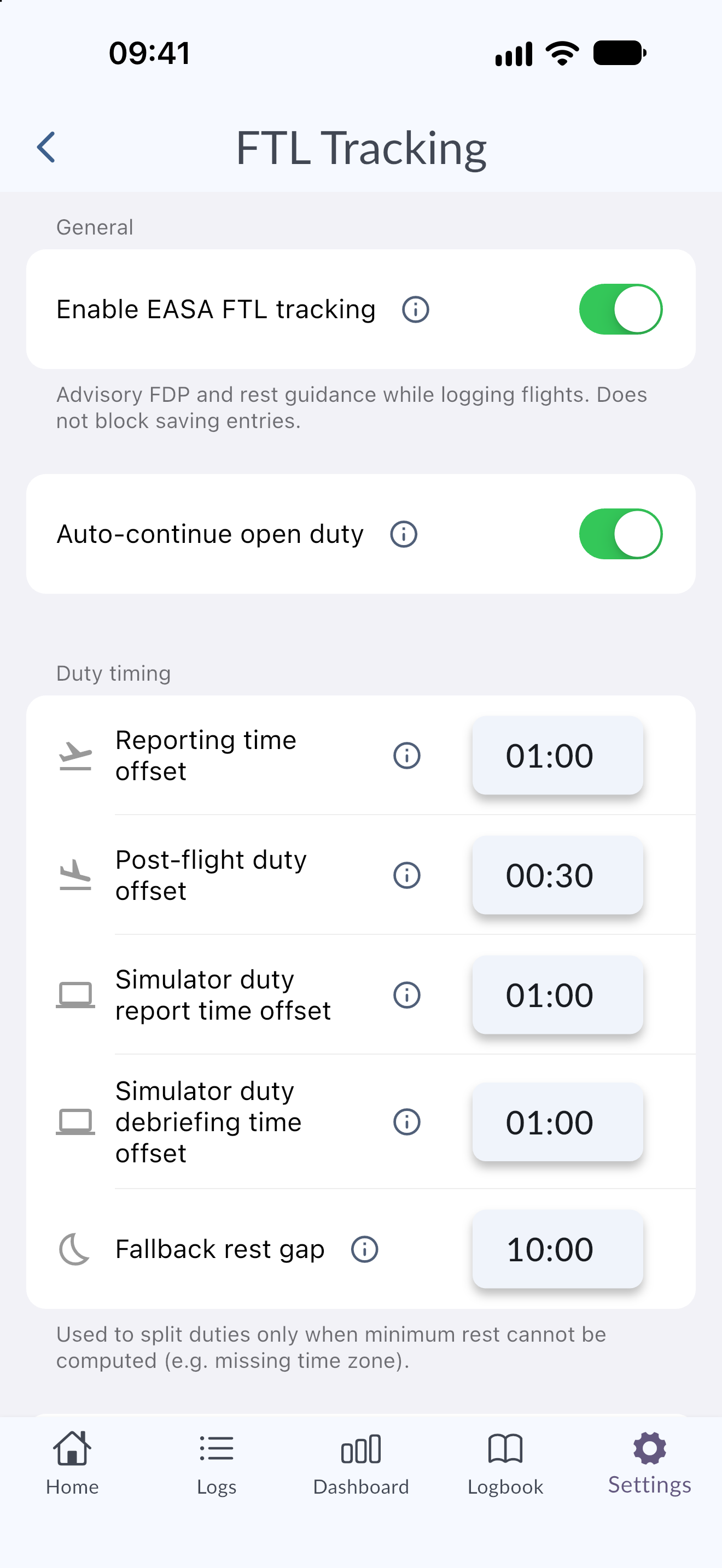
Under General:
- Enable EASA FTL tracking: turns FDP, minimum rest and cumulative limit calculations on or off.
- Auto-continue open duty: when a new flight starts before the minimum rest after the previous duty is complete, MyLog treats it as part of the same duty period. Turn this off if you prefer to start new duties manually with Start a new duty on the flight form.
- Use FRM for unknown acclimatisation: when MyLog cannot determine your acclimatisation state (state X), it applies the more conservative FRM column of Table 3 instead of assuming you are acclimatised.
- Fallback rest gap: used to split duties only when the minimum rest cannot be calculated, for example when an airport time zone is missing. A gap longer than this value starts a new duty.
Under Duty timing:
- Reporting time offset: how long before your first block-off time your duty is assumed to start. It prefills the reporting time on the flight form, and you can change it for each flight.
- Post-flight duty offset: how long after your last block-on time your duty is assumed to end. It prefills the duty end on the flight form.
- Simulator duty report time offset and Simulator duty debriefing time offset: how long before a simulator session your duty starts, and how long after it your duty ends. Both are 01:00 by default.
How duties are built
MyLog links your records into the same duty by their actual time order and the airports involved:
- Flights, positioning, simulator sessions and standby are placed in time order.
- If there is not enough rest between two records, they belong to the same duty. Once there has been enough rest, a new duty starts.
- Duty starts are detected automatically. On the flight form, Start a new duty forces a new duty when you need it.
- Positioning after you report and before an operating flight counts toward your FDP, but it is not an operating sector. Until the operating flight is logged, MyLog shows the positioning as pending (No operating flight linked yet), and it is linked to the duty when you add the flight (Included in the following operating duty).
- Your FDP ends at the block-on time of the last operating flight. Post-flight duty time is not added to an FDP exceedance.
Read the FTL status
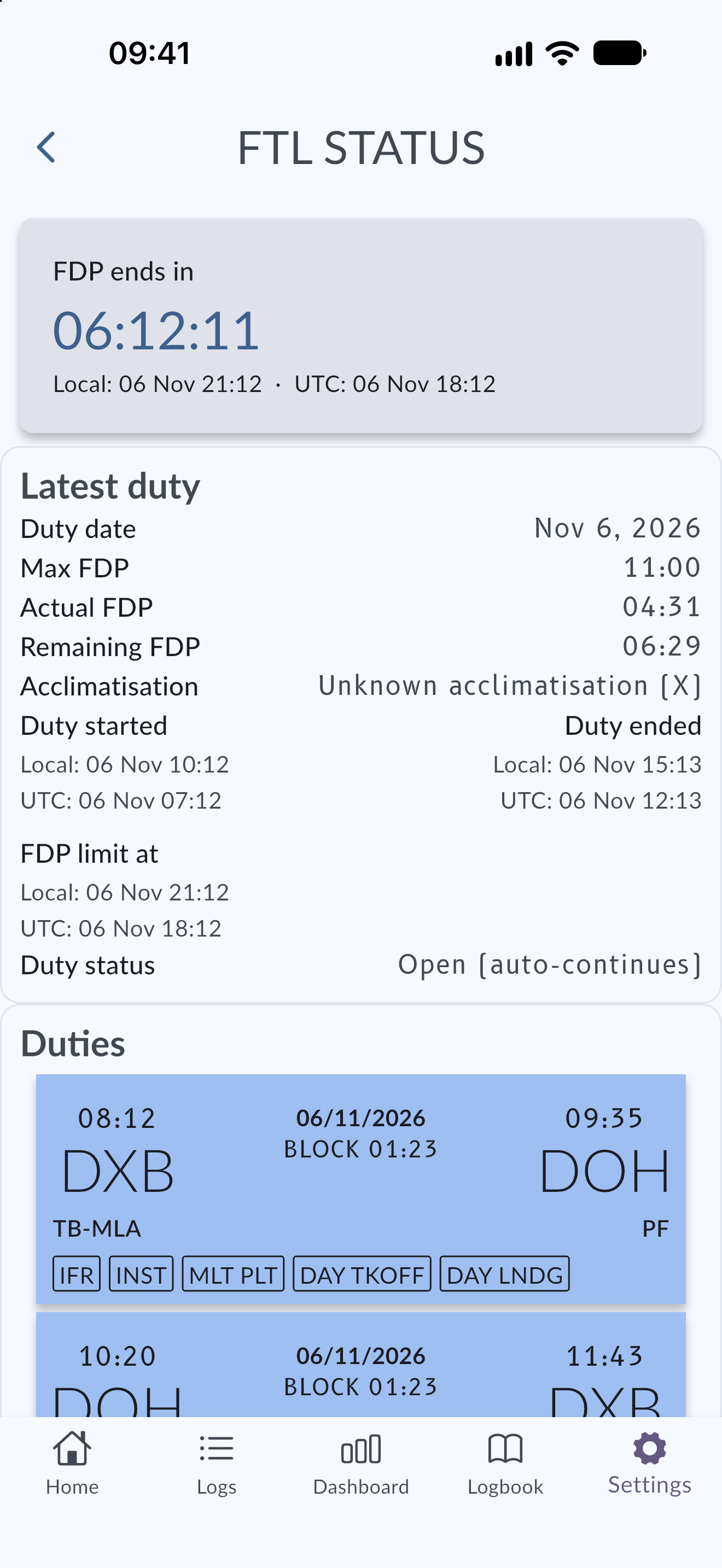
Open the FTL status from the FTL card on Home, or from a flight, positioning or simulator record. Opening it from a record shows the duty that record belongs to.
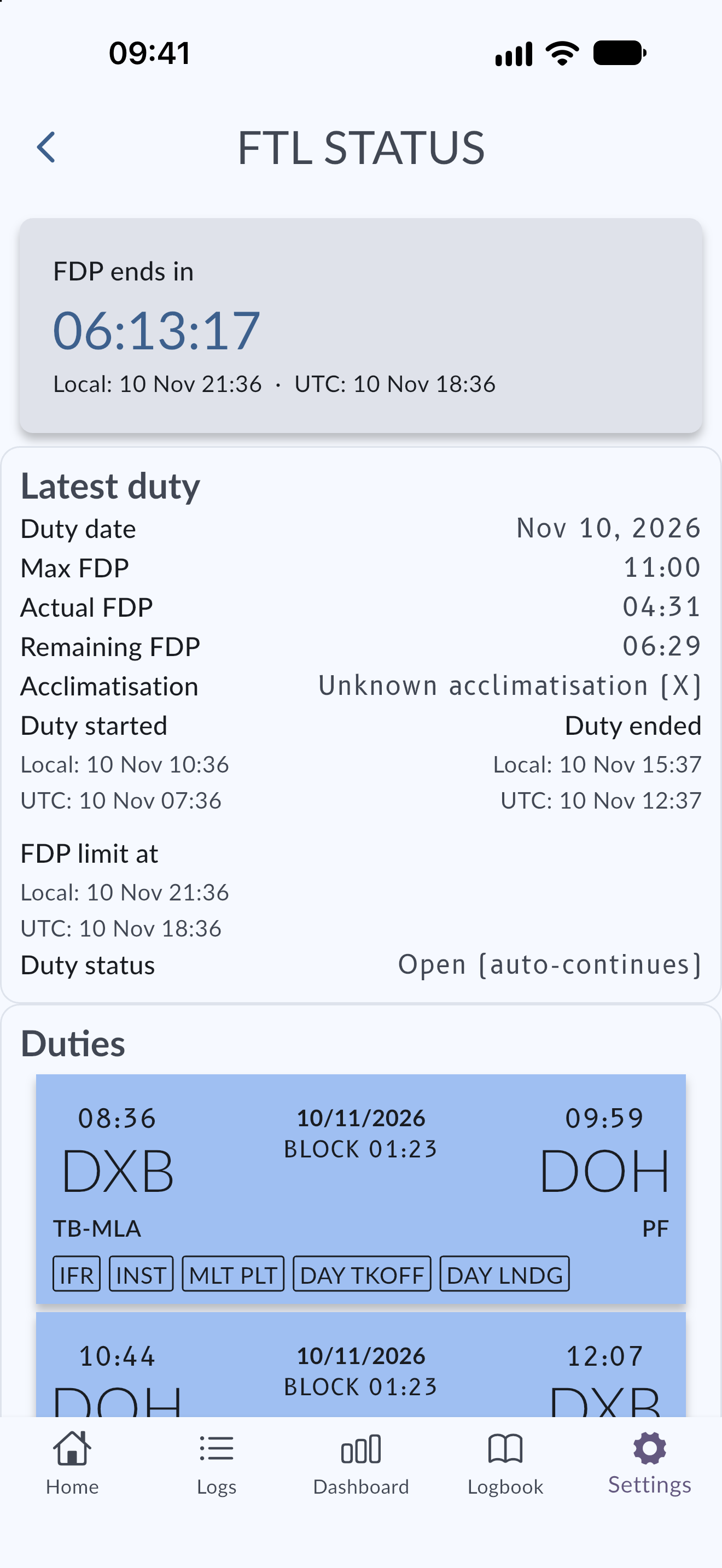
The screen shows:
- Max FDP, Actual FDP and Remaining FDP. If the FDP is exceeded, the exceeded time is shown.
- Required rest, and a countdown (Rest ends in) once the duty has ended.
- Duty status, for example Open (auto-continues), and the Duties list with the flights, positioning and simulator records that belong to the duty.
- Duty started, Duty ended, FDP limit at and Rest ends at, each in both Local and UTC time with the date.
- Acclimatisation and How this state was determined. Tap Correct to override the calculated state for the duty, or choose Automatic to return to the calculated state.
- Cumulative limits: duty in 7, 14 and 28 days, and flight time in 28 days, the calendar year and 12 months.
- Warnings, such as FDP exceeded, Insufficient rest between sectors or Airport time zone missing.
The FTL card on Home shows the current FDP or rest. When there is no active duty or rest, it shows No active duty or rest with a shortcut to the last finished duty (Tap to see last finished duty). On the Dashboard, FTL status shows your latest duty, and each flight in your list can show a chip with the FDP left time, the rest before it, or FDP exceeded.
FTL fields on the flight form
When FTL tracking is on, the flight form has a Flight & Duty (FTL) section:
- Reporting time and Duty end, prefilled from your offsets. Use Reporting time override and Duty end override to change them for one flight.
- Augmented crew: Not augmented, +1 crew or +2 crew. Augmented crew is set only by manual pilot selection: MyLog does not decide it for you.
- In-flight rest facility (None, Class 1, Class 2 or Class 3) and In-flight rest (minutes).
- Split-duty ground break: the break between flights in a split duty. It must fit a continuous ground interval at the same airport between flights in the duty.
- Airport standby before duty and its start time.
- Home standby before duty: enter Start (UTC) and Call (UTC). Standby ends when you report at the designated point, and the call time is needed for the night-hours rule. The timeline can be at most 16 hours before reporting.
- Planned FDP extension and Commander's discretion.
- Layover and Planned rest.
Standby and positioning before a flight
- Home standby and airport standby count toward your duty. Standby counts toward duty without a positioning record.
- On a positioning record, Will you continue with an operating flight? tells MyLog that you will operate a flight after the positioning without a qualifying rest.
- Called from standby away from the airport? lets you enter the standby start, the call and your reporting time in UTC. EASA counts 25% of this standby toward cumulative duty and it may reduce the maximum FDP after 6 hours.
- Airport standby, call-out and positioning before a flight are kept as pending duty and attach to the duty when you add the flight.
FDP exceedance and commander's discretion
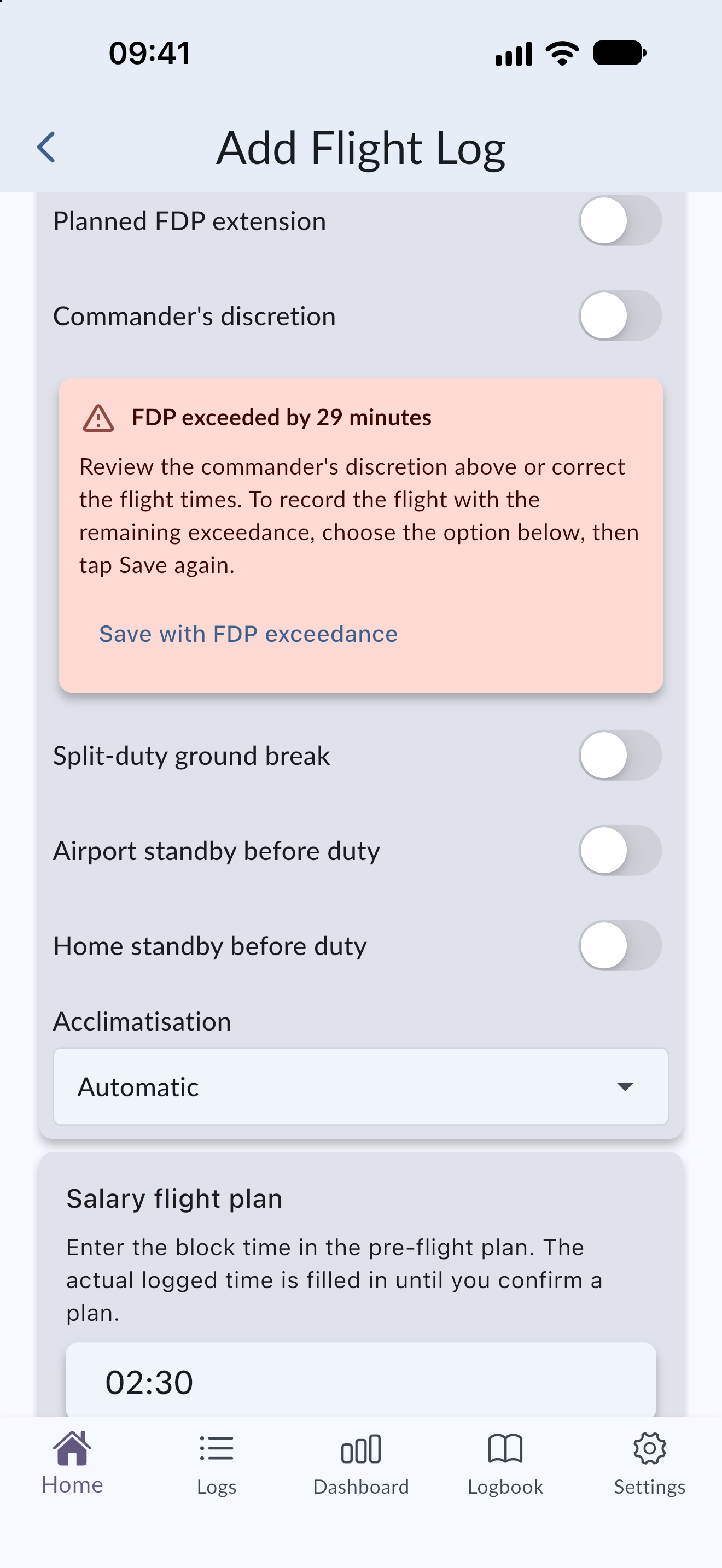
If you exceed your FDP, MyLog shows a warning, FDP exceeded by N minutes, when you save the flight. You have two options:
- Correct the flight times, or enter a commander's discretion extension in Discretion extension (minutes). The limit is +2 hours (+3 hours with augmented crew). You can add a Discretion reason note, such as a weather diversion.
- Choose Save with FDP exceedance to record the flight with the remaining exceedance, then tap Save again.
The duty then shows Commander's discretion applied or FDP exceeded.
Simulator duties
For a simulator session, MyLog shows a Duty report (UTC) and a Duty end (UTC) that include briefing and debriefing. They default to 01:00 before and after the session and you can edit them. The simulator session times themselves do not change. After the session MyLog shows Simulator duty ends in, Rest before next FDP ends in and Earliest next FDP at. If the simulator location has no time zone, MyLog uses the conservative 14-hour away-from-base rest minimum.
Tips
- Set your home base and check that your airports have time zones for the most accurate result.
- Leave Auto-continue open duty on unless you want to decide every duty start yourself.
- Use the FTL status after each flight to see when your rest ends.
Limitations
- EASA FTL only. Other schemes are not calculated.
- Augmented crew is set only by manual pilot selection.
- The guidance is advisory. Your operator's approved scheme takes precedence.