Crew Documents
Crew Documents helps you keep important crew-related documents in MyLog, track expiry status, and open document details quickly when something needs attention.
Crew Documents supports PDF attachments in addition to photos, details that depend on the document type, expiry status on Home, flexible expiry reminders by email or push notification, and direct links to document details from supported emails or push notifications. When you add a log, MyLog also warns you if your licence or medical had expired on the flight date.
Where to find it
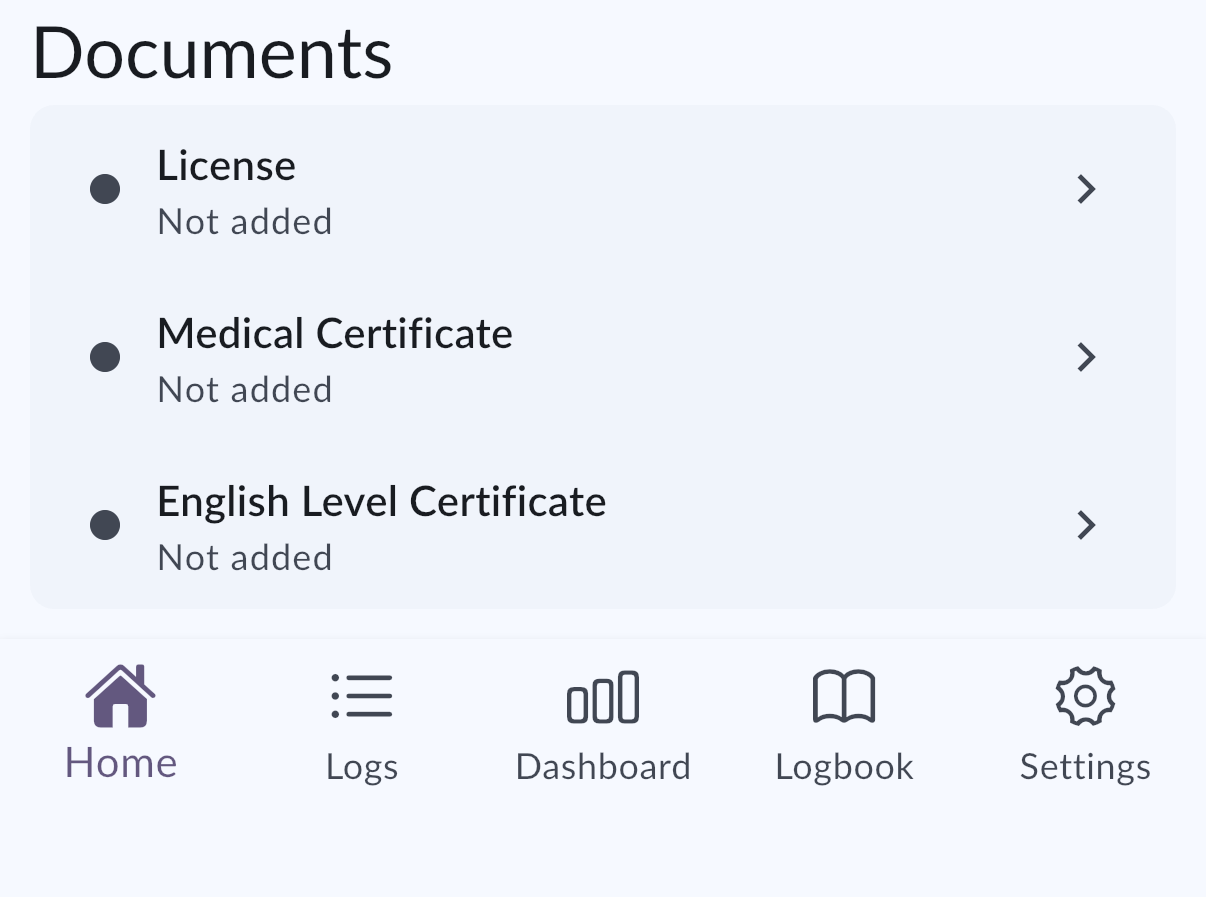
Open Crew Documents from the app area where you manage your documents. Expiry information can also appear on Home when you have documents with expiry status to review.
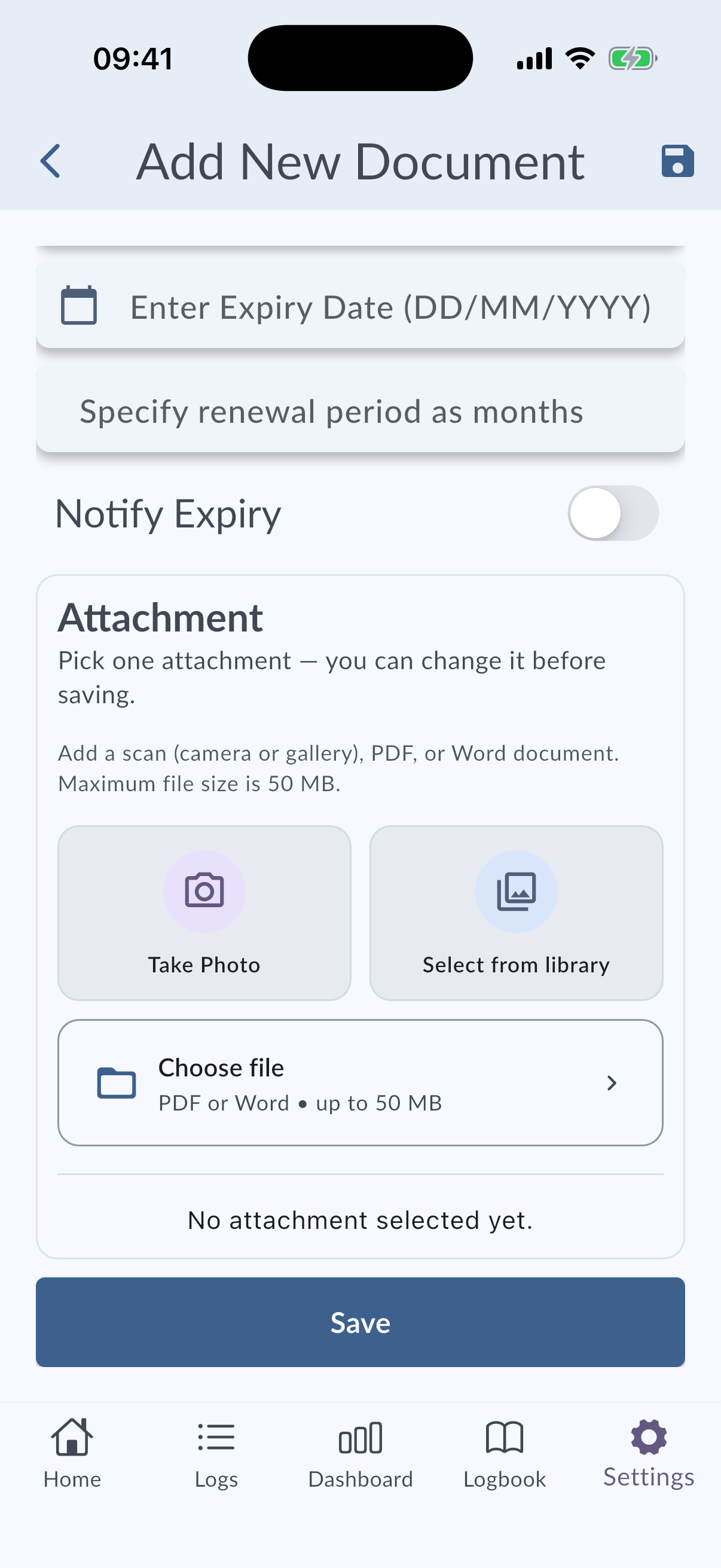
Add a crew document
Use Add Document or the equivalent action in Crew Documents to create a new record.
Depending on the document type, MyLog may show additional fields so the record can describe that document more accurately. Fields that do not apply to a document type are not shown.
- Other: enter a Document name. The name you enter is shown in the document list, so you can tell your custom documents apart.
- Licence: add at least one rating. MyLog does not let you save a licence without one.
- Landing Card (CMC): this document type is called Landing Card (CMC).
You can attach:
- Photos or images.
- PDF files.
Use PDF attachments when your document is already stored as a file, such as a downloaded certificate, license copy, medical document, training record, or company document.
Track expiring documents
MyLog checks document expiry status and can show expiry information on Home. This helps you notice documents that are expired or close to expiring without opening the full Crew Documents list first.
MyLog can also send notifications about documents that need attention. Tap a supported notification or email link to open the related document details directly.
Set up expiry reminders
Reminders need an expiry date. If you turn on Notify Expiry without one, MyLog asks you to enter the Expiry Date first.
- Open the document and turn on Notify Expiry.
- Choose when to be reminded. You can select one or both options:
- Notify me at exact date: pick a Notification date. The date must be in the future.
- Notify me before expiry: enter an Amount and choose a unit: Days, Weeks, Months or Years. The amount must be a positive whole number.
- Choose how you want to be reminded: Email, Push notification, or both. At least one channel must be selected.
- Save the document.
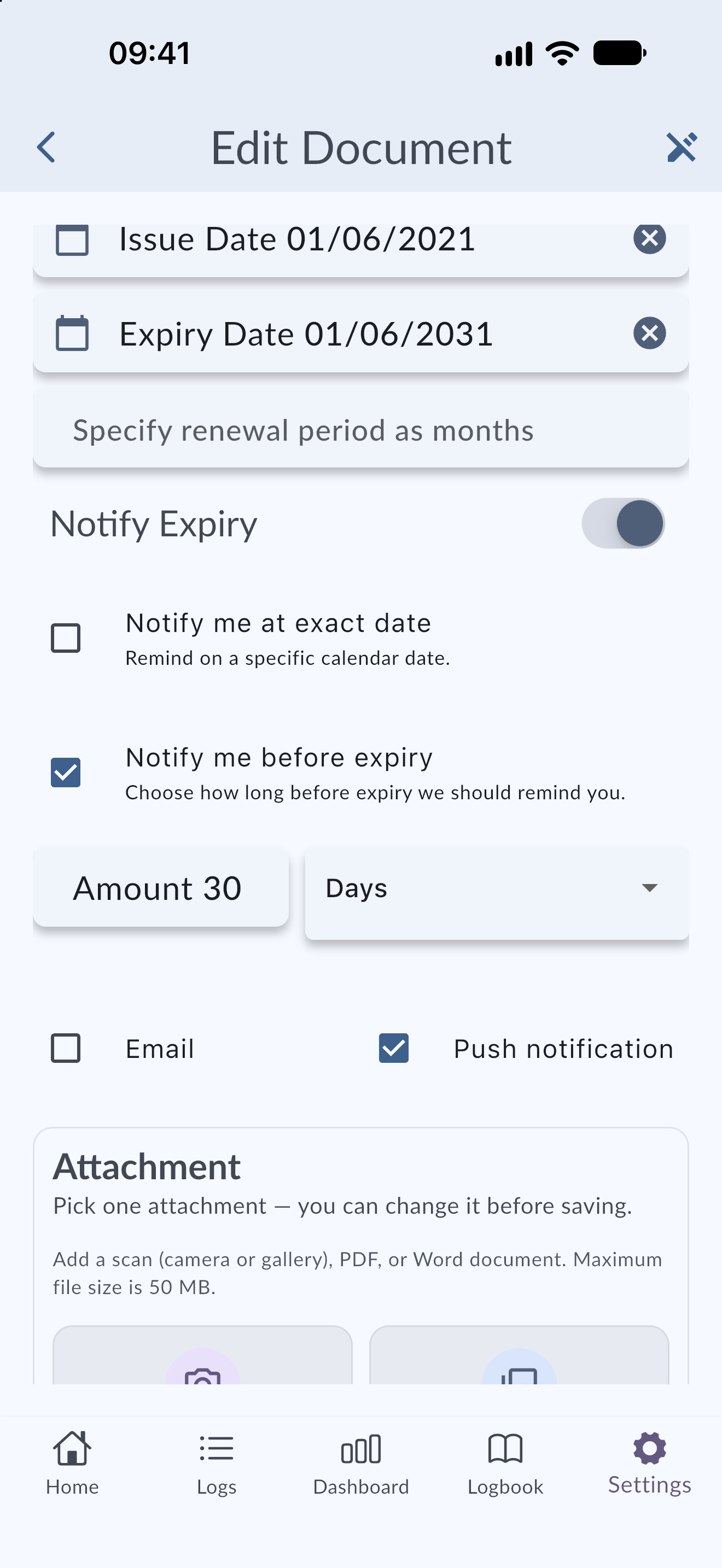
Use Notify me before expiry for documents that take time to renew, such as a medical or a licence, and Notify me at exact date for a one-off reminder on a day you choose.
Expired licence or medical warning when you log a flight
When you add a log, MyLog checks your Licence and Medical documents against the flight date. If one of them had already expired on that date, an Expired licence or medical warning lists the documents. The warning does not block you: you can still save the log.
Keep your expiry dates up to date so this warning stays accurate.
Open document details
Open a document from Crew Documents, Home, an email, or a notification to review its details.
From the detail screen, you can check the document information, expiry status, and attached files.
Tips
- Keep expiry dates updated so Home and notifications remain useful.
- Prefer PDF attachments when you need to preserve the full original document.
- If a document is linked from a notification or email, opening the link should take you directly to that document when possible.