Salary Calculator (Beta)
The Salary Calculator shows a monthly salary estimate in MyLog, calculated from your logged flights, simulator sessions and positioning records and the pay rates you enter. It is available to THY and AJet cockpit crew. For THY it estimates gross pay, and for AJet it estimates net pay.
The Salary Calculator is in beta. It is an estimate and does not change your actual payslip. Partial-month and leave proration (THY), and per diem and deductions (AJet), are not included, so results can differ from your payslip. If you notice a difference, please tell us.
Who can use it
Salary Calculator appears in Settings only for pilots whose profile has THY or AJet as the airline and a Captain, First Officer or Second Officer rank. If you do not see it, check your airline and rank in Profile.
Set it up
- Open Settings, then Salary Calculator.
- Enter your pay rates (see the sections below). You must save valid amounts before you can turn the estimate on.
- Turn on Show estimated gross salary (THY) or Show estimated net salary (AJet).
- Choose your privacy options (see Privacy and where your data is stored).
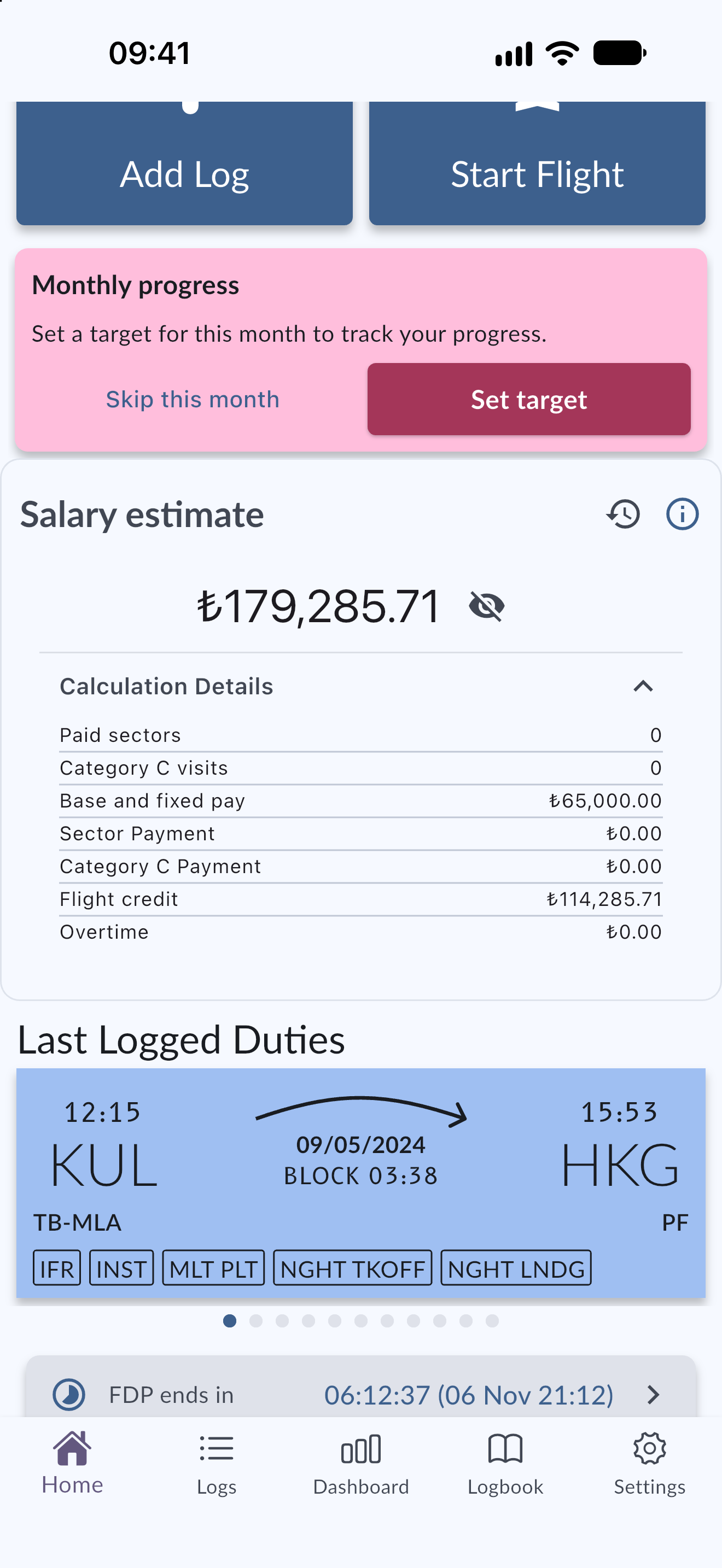
The estimate appears on Home and on the Dashboard as the Salary estimate widget, and in your monthly earnings history. The THY estimate shows for the current month as soon as a valid rate exists.
THY rates
Enter the amounts from your payslip, in TRY. Each field has an info button that explains where to find the number.
- Seniority Wage: the amount on the Seniority Wage line of your payslip. Use the amount, not the number in the NUM column. For example, enter 72948 for a Seniority Wage of 72,948 TRY.
- Work/Flight Comp.: the monthly gross amount on the Work/Flight Compensation line. MyLog uses it to calculate your hourly flight rate.
- Add work/flight compensation to gross total: turn this on when your base salary above excludes this separate payslip item. Existing configurations keep their previous behaviour until you confirm it.
- Credit Points: the number in the NUM column next to Credit Wage on your payslip, such as 63. Do not enter the Credit Wage amount. Update it when your new point becomes known.
- Sector Payment: the amount paid for each flight sector above your monthly threshold.
- Sector Payment Thr: how many flight sectors must be completed before Sector Payment begins. The default is 20: with 22 sectors, 2 sectors receive the payment.
- Category C Payment: the amount paid for a qualifying Category C airport visit.
- Category C Airports: search for an airport by name, IATA or ICAO code and select it to add it to your personal Category C list. Remove an airport with Remove when it no longer qualifies.
- Social Welfare: the monthly gross amount on the Social Welfare line, if you receive it. Do not enter per diem, insurance benefits or other variable payments.
- Other fixed gross items: one per line, in the form
Name: Amount, for exampleSocial allowance: 20000.
How THY flight pay is estimated
- On each flight, enter the Planned block time (HH:MM) in the Salary flight plan section. Until you confirm a plan, the logged time is filled in. Flight pay uses the longer of the planned block time and the logged total time.
- For a simulator session, mark Planned night flight if its pre-session plan included night duty.
- Flight compensation is shown separately, and positioning and simulator time are included in the paid hours.
AJet rates
- Base: your fixed monthly net pay before sector and night supplements.
- S1, S2, S3 and S4: the net pay per sector for a planned block time of 00:01–00:59, 01:00–01:59, 02:00–02:59 and 03:00 or longer.
- Night: the net night supplement paid once per eligible local calendar day.
How AJet pay is estimated
- Sector pay and the night supplement use the pre-flight plan. When you add or edit a flight, choose the planned class in AJet salary class (S1 to S4) and adjust Night if the flight plan differs. MyLog suggests both from the logged UTC times, converted to Türkiye time, and you can change them.
- Positioning is paid as an S2 sector at half pay, and a simulator session is paid as two S2 sectors. The AJet calculation also includes a summer multiplier.
- AJet flights that have no saved class do not get sector or Night payment until you edit the flight and choose a class.
Rate versions and the effective date
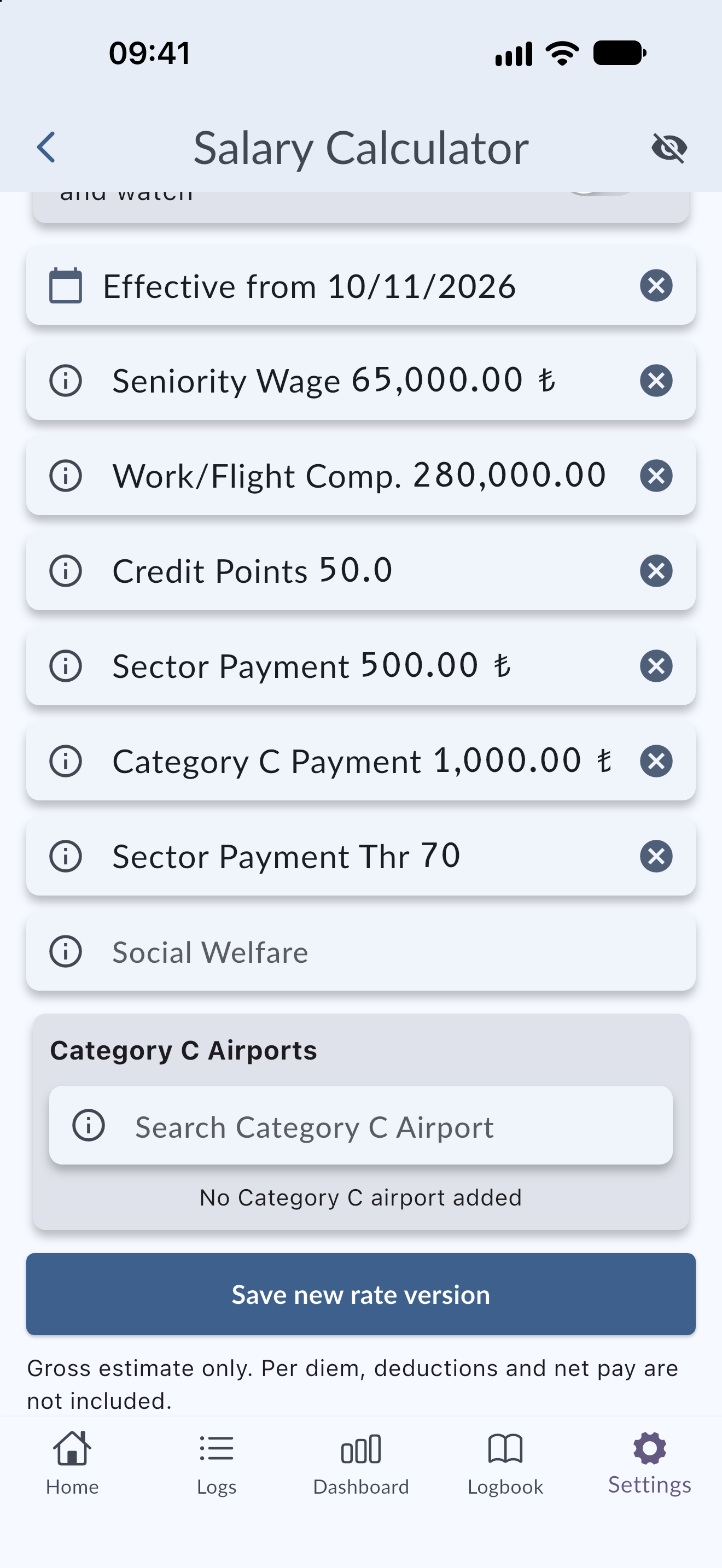
Rates are saved with an Effective from date, so your estimate always uses the rate that applied on that day.
- Change the rates and choose Update rate, or set a new Effective from date.
- Choose Save new rate version.
If your month needs a rate from the first day, MyLog warns you (A rate is needed from the first day to estimate the full month). Choose Use the first day of this month or keep the selected date.
Choose Show Previous Rate Versions to see the versions that were saved earlier, with the date each was saved. The number of saved versions is shown on the screen.
Read your estimate
On Home and on the Dashboard, the salary card shows the estimate for the month. Tap Calculation Details to see the breakdown as a table, with the item on the left and the value on the right. Depending on your airline, it lists items such as base and fixed pay, flight credit, overtime, simulator, positioning, paid sectors and Category C visits. AJet cards show the S1 to S4 count and amount breakdown.
If no breakdown was saved for a month, MyLog tells you that no calculation details are available.
Monthly earnings
Choose Monthly earnings (AJet: Monthly net earnings) to see your estimate for each past month. If no month has been calculated yet, the screen says so. If you turned off server storage, past monthly earnings are not available.
Try a scenario
Open Salary playground (also called the Trial screen) to try a scenario. Enter your estimated Total Hours, Sectors Total and Cat. C Flight Count, then choose Calculate scenario to see the estimated gross salary and its breakdown. Category C arrivals cannot exceed flight sectors. For AJet, enter sector counts per class, positioning sectors, simulator duties and paid night days. The Trial screen uses the current rates unless only a future rate exists.
Privacy and where your data is stored
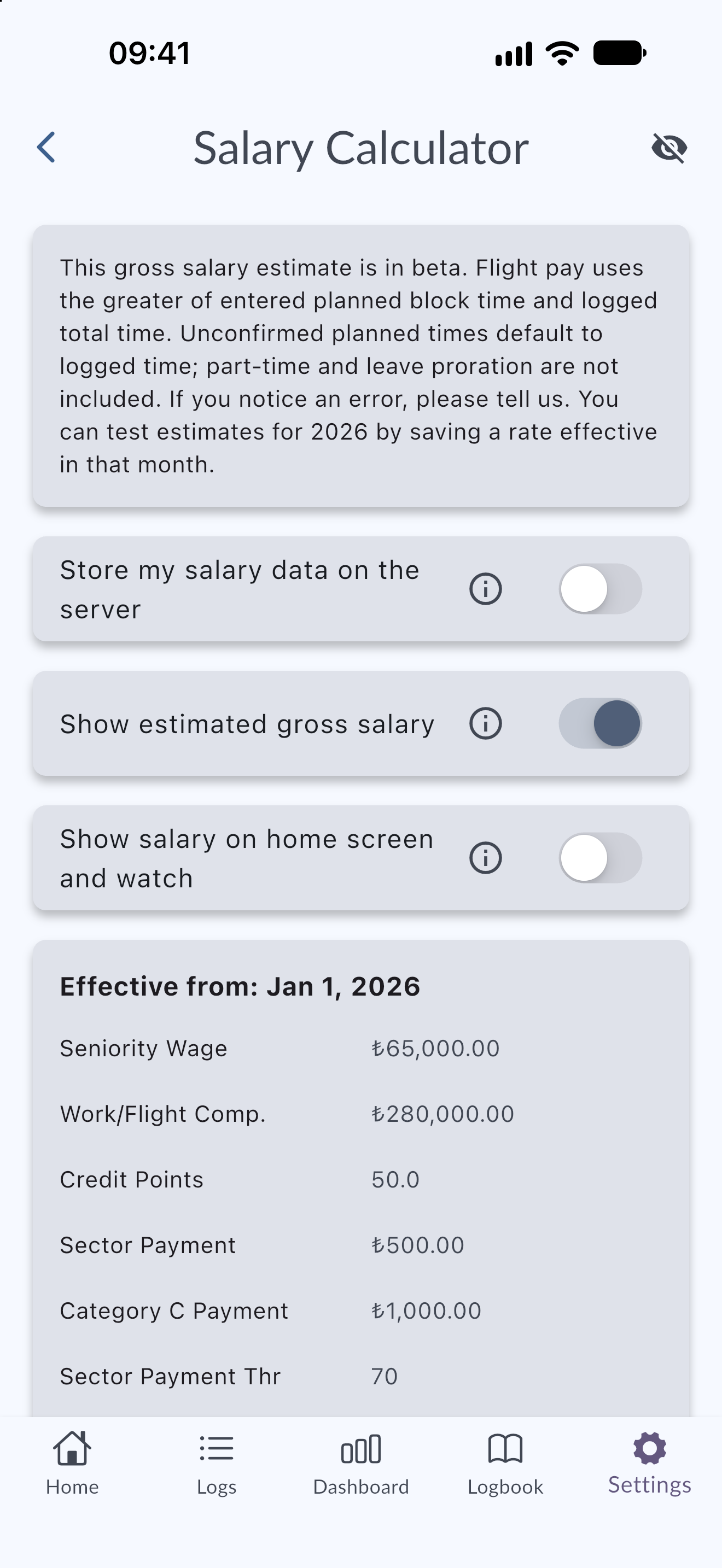
- Hidden by default: on Home and the Dashboard, amounts are masked, with one asterisk per digit and a ₺ symbol. Tap the eye icon, or Show salary, to reveal them. One eye icon reveals the amount everywhere, including monthly earnings and the rate screen.
- Device verification: MyLog asks you to authenticate before it reveals your salary. If device authentication is unavailable, tap Show salary. Amounts are hidden again after the app restarts.
- Show salary on home screen and watch: a separate switch controls whether the estimate appears on home screen widgets and on the Apple Watch. These places cannot ask for device authentication, so anyone who sees them may see your salary. Turn it on only if you are comfortable with that.
- Store my salary data on the server: on by default. If you turn it off, MyLog deletes your salary rates and monthly estimates from the server. Only your current rate stays on this device, earlier rate versions are removed, this month's estimate is recalculated from that rate, past monthly earnings are no longer available, and the monthly summary email will not include salary information. The local rate is deleted if you sign out or uninstall the app. Turning the switch back on uploads the rate on your device.
Works offline
When MyLog cannot reach the server, the salary estimate is calculated on your device from your rates and logs. Once you are online again, MyLog uses the saved server result.
Home screen widgets and Apple Watch
After you turn on Show salary on home screen and watch, a small widget shows the estimate, a larger one shows the breakdown, and the Apple Watch app has a salary page. See Platform integrations.
Money fields
Money fields format as you type and show a trailing ₺.
Tips
- Check your payslip once a month and compare it with the estimate. Differences usually come from items the beta does not include.
- Keep the Category C airport list current so Category C payments are estimated correctly.
- Set a new Effective from date whenever your rates change, instead of overwriting old values.
Limitations
- Beta: proration for partial months and leave (THY), and per diem and deductions (AJet), are not included.
- The estimate does not change your payslip.
- With server storage off, earlier rate versions and monthly earnings are not available.