My Flight Journey
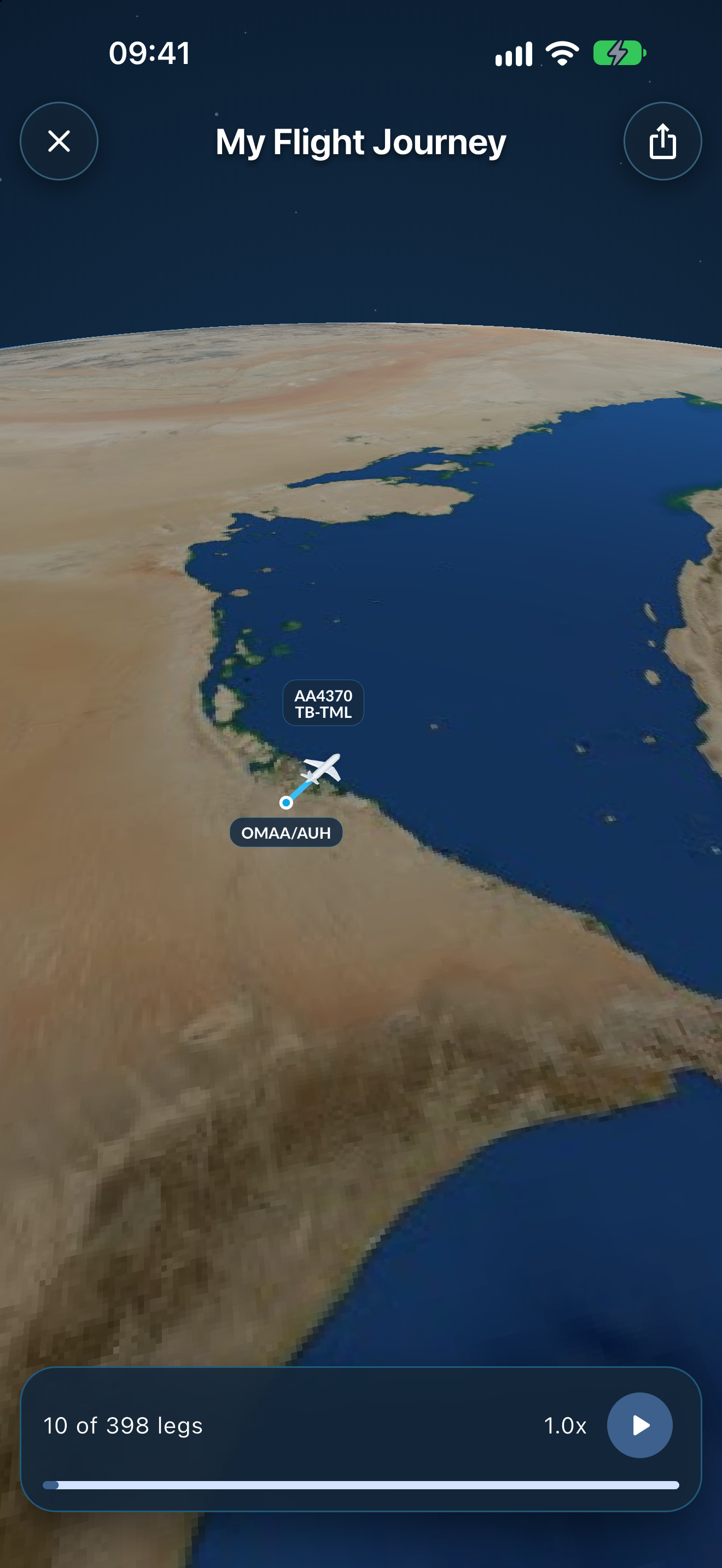
My Flight Journey replays the flights and positioning legs in your selected Dashboard period on an animated 3D globe, in the order you flew them. You can watch it in the app, or export it as a vertical video to share.
Where to find it
Open Dashboard and find My Flight Journey. If you do not see it, choose Customize Dashboard and turn the widget on. Tap the widget (Tap to watch) to open the player.
The journey uses the Dashboard period you have selected. See Dashboard overview for how to change it. The widget shows how many legs are ready to replay, for example "42 legs ready to replay".
What is shown
- Every real flight, home-base return, domestic leg and positioning record in the period, in chronological order.
- Flight positioning is drawn with an aeroplane, and ground positioning is drawn with a bus.
- Simulator records are not shown, and neither are legs that start and end at the same airport.
The player
The player opens full screen and hides the app navigation. Floating controls sit on top of the globe.
- The camera follows the aircraft closely, zooms out between distant airports, and shows detailed regional terrain near take-off and landing.
- A counter shows your progress, for example "12 of 42 legs".
- Choose a playback speed from 0.5x to 4x.
- Close the player to return to the Dashboard.
The globe and the terrain are prepared on your device, so the journey works without a connection.
Export and share a video
Use the single share button in the player (Export journey video) to export your journey as a video. The button adapts to your platform.
- Tap the share button to start the export.
- MyLog creates a silent 1080 × 1920, 30 FPS video on your device. Keep the app open while it works. MyLog notifies you when the video is ready.
- When the notification Your flight journey is ready! arrives, tap it to preview and Share video.
To stop an export, choose Cancel video. If the export is paused, a notification asks you to open MyLog to continue.
Open a journey from your monthly summary email
The link in your monthly summary email can open the matching month directly in My Flight Journey.
Empty and error states
- There are no flights to animate in this period.: choose a period that contains flights or positioning records.
- Your flight journey could not be prepared.: try again, or choose a different period.
- The journey video could not be prepared. Please try again.: start the export again. If the problem continues, contact support.
Tips
- A shorter period, such as This month, produces a shorter video that is easier to share.
- Use My Flights Heat Map when you want to see which countries you have visited rather than the order of your flights.